How time tracking works in Tristiks Grow
Exactly what OneTrack, the desktop app, records, what it never records, and who can see it. No surprises for you, your team or your clients.
No credit card required

Exactly what OneTrack, the desktop app, records, what it never records, and who can see it. No surprises for you, your team or your clients.
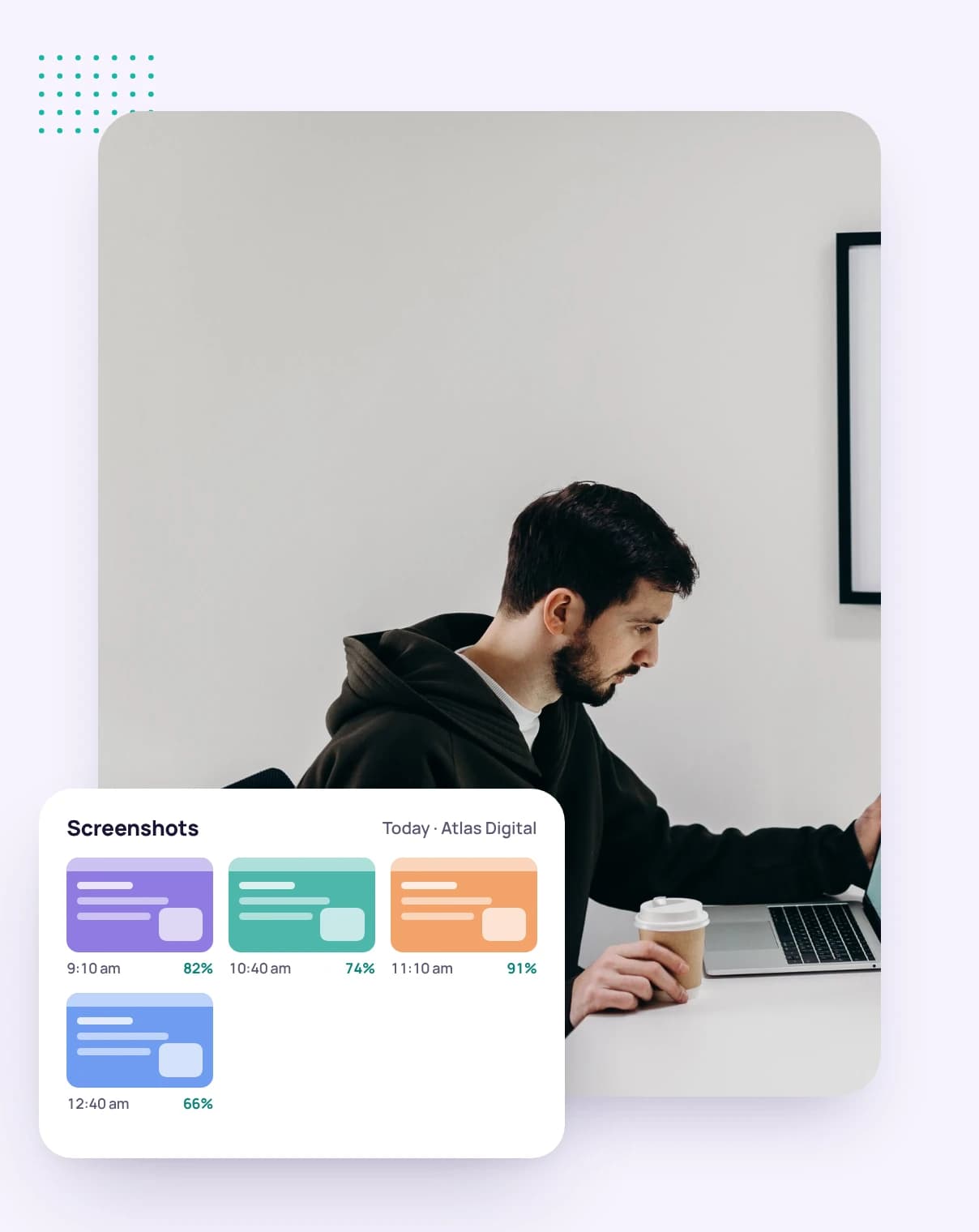
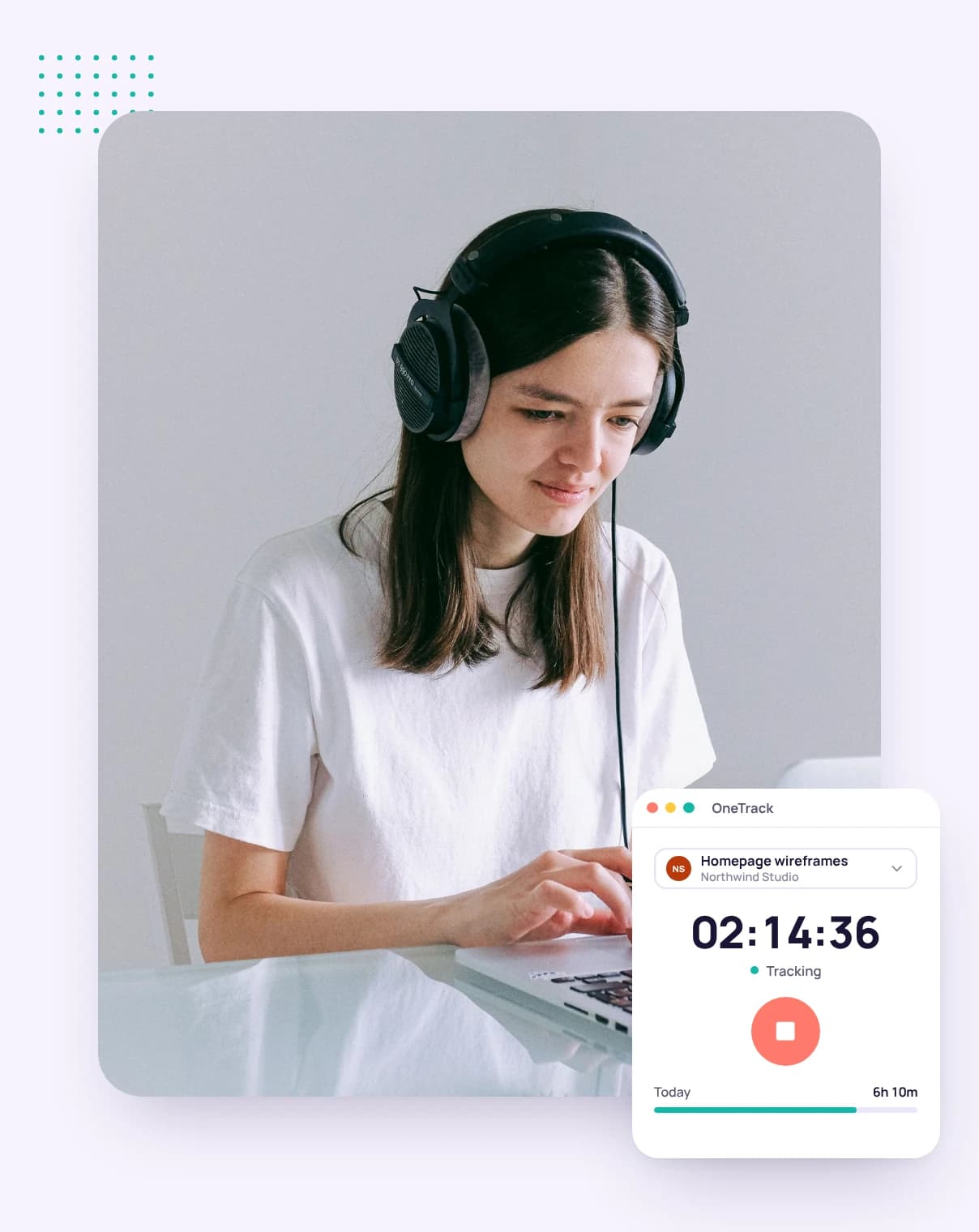
Screenshots and activity come from the desktop app, and only while its timer is running. The web timer records time and nothing else.
In the desktop app or your browser. Both run the same clock, so a pause or stop in one reaches the other within seconds.
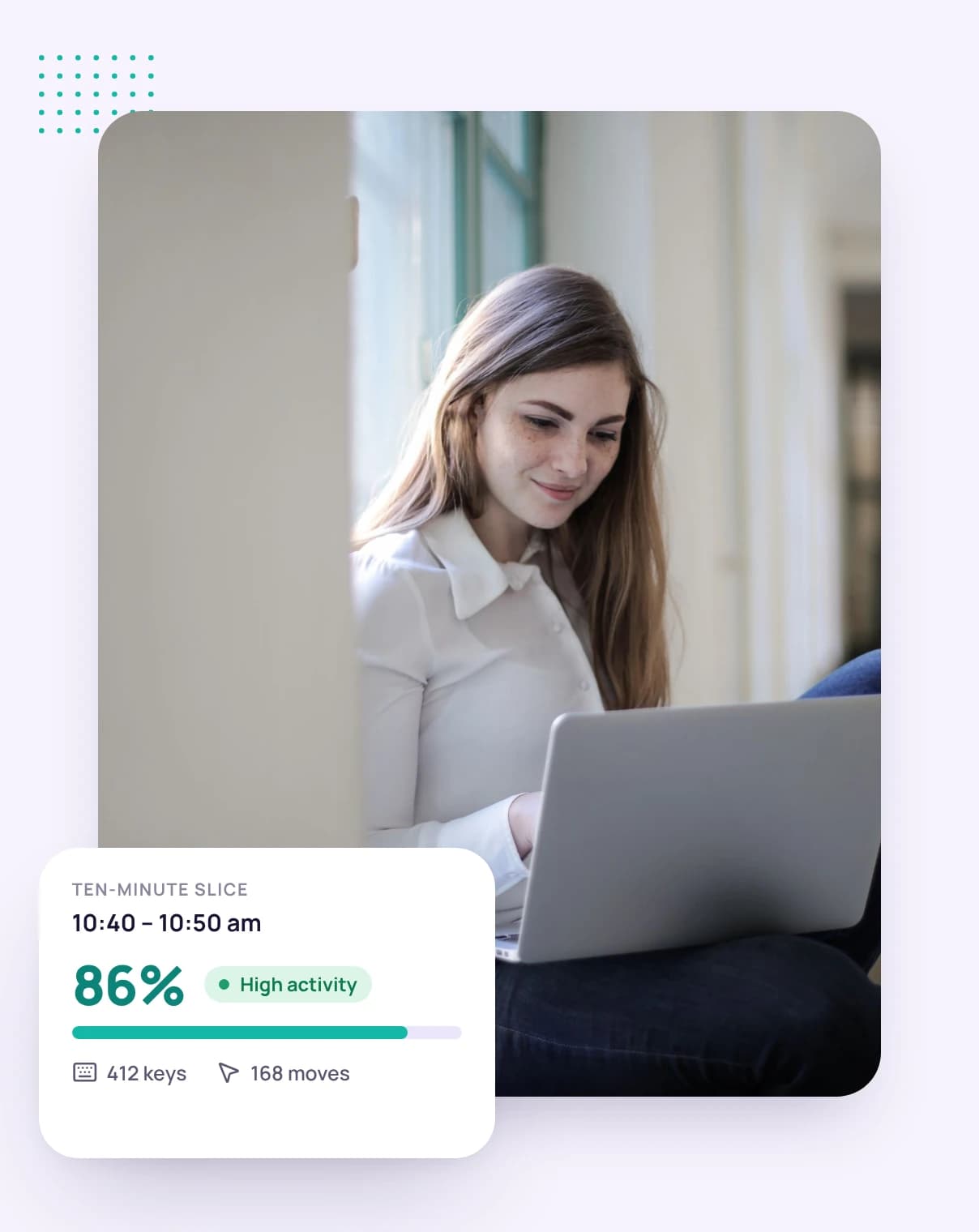
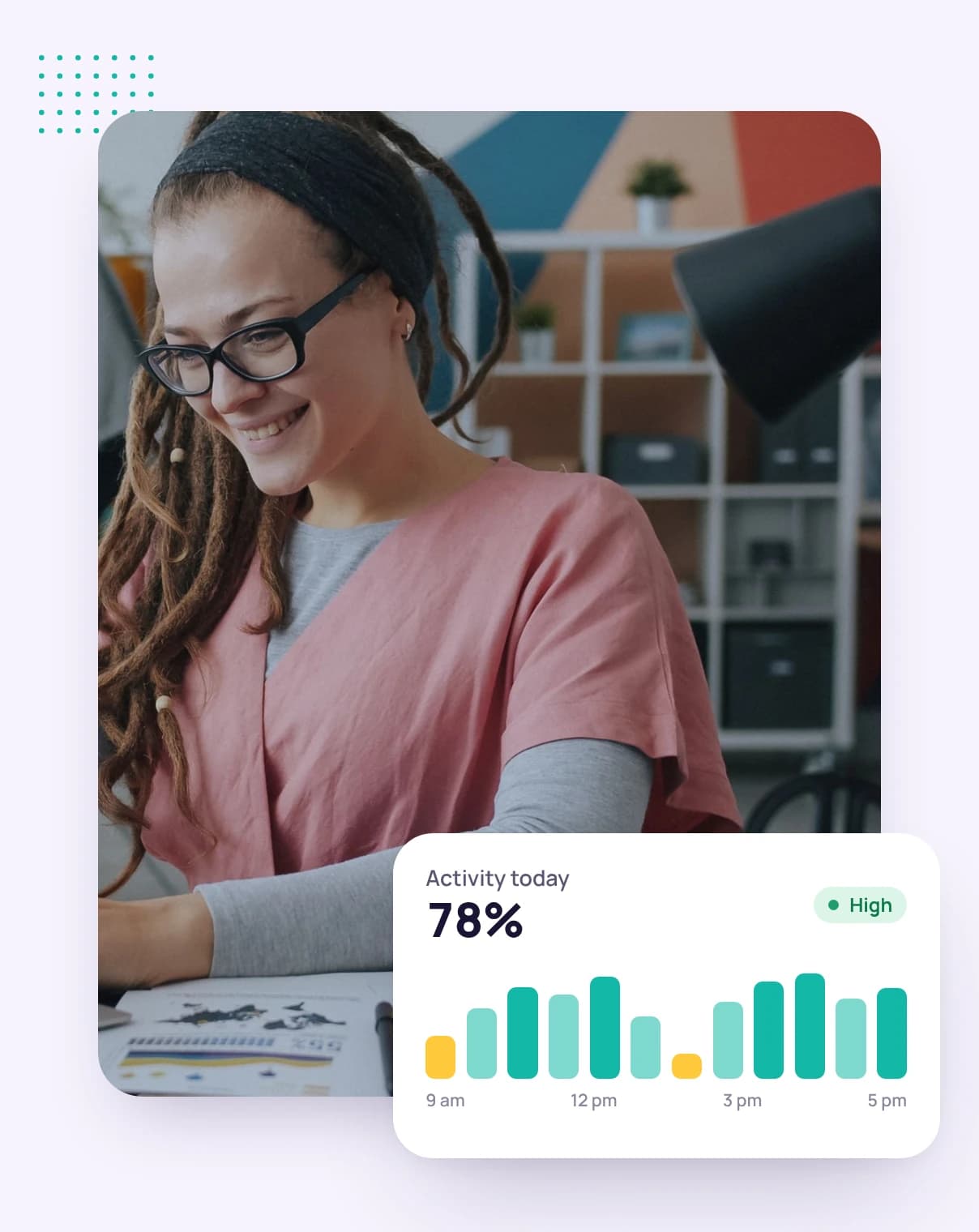
Each slice is saved the moment it ends, with its activity level, so closing the laptop never loses work already done.
Inside each capture window you or your account owner chose, from every 5 to every 60 minutes.
After 3, 5, 10 or 15 minutes without keyboard or mouse input, the app asks whether to keep that time or discard it.
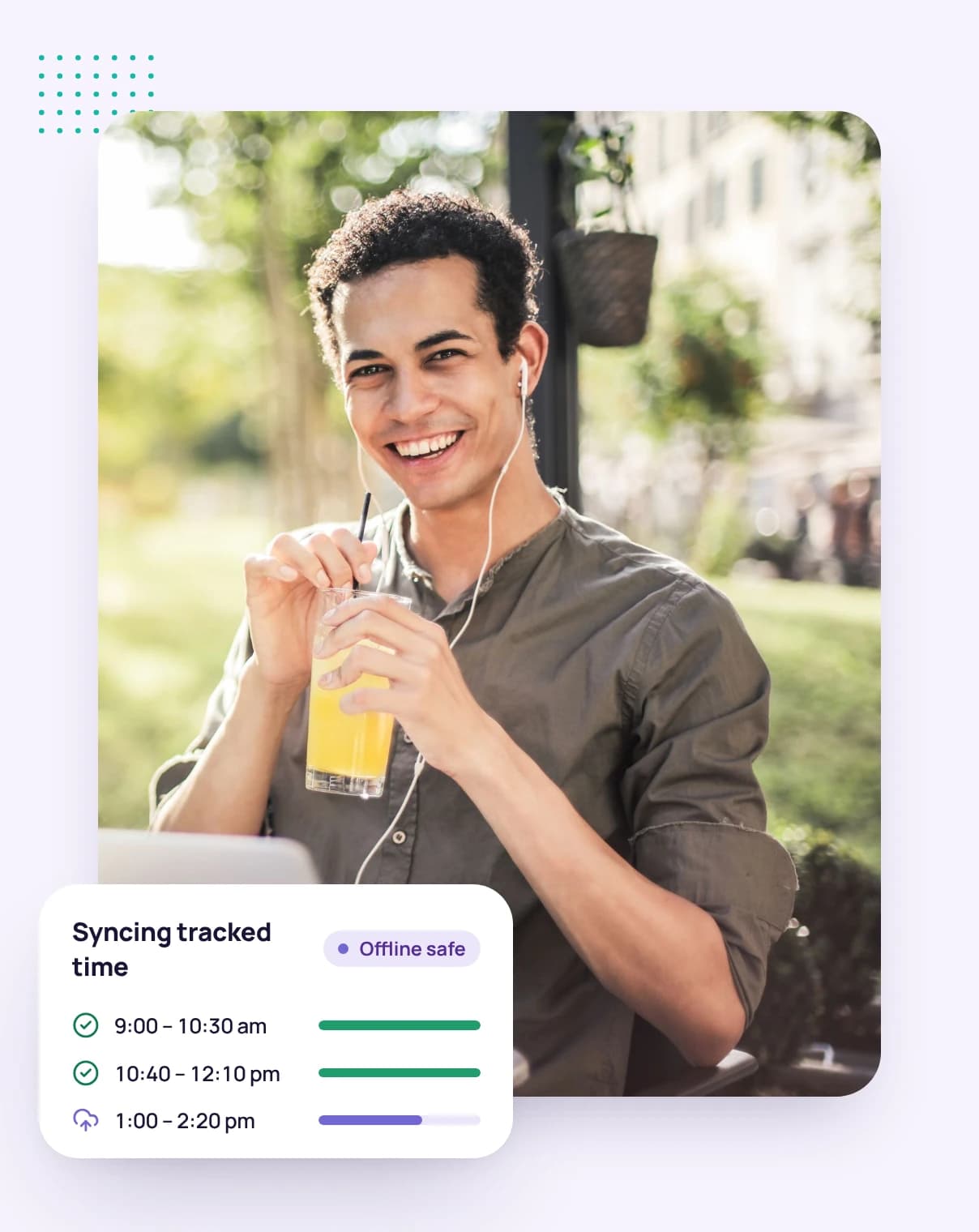
Time and captures wait on your computer and are sent when you're back online. Captures more than 72 hours old are dropped unsent.
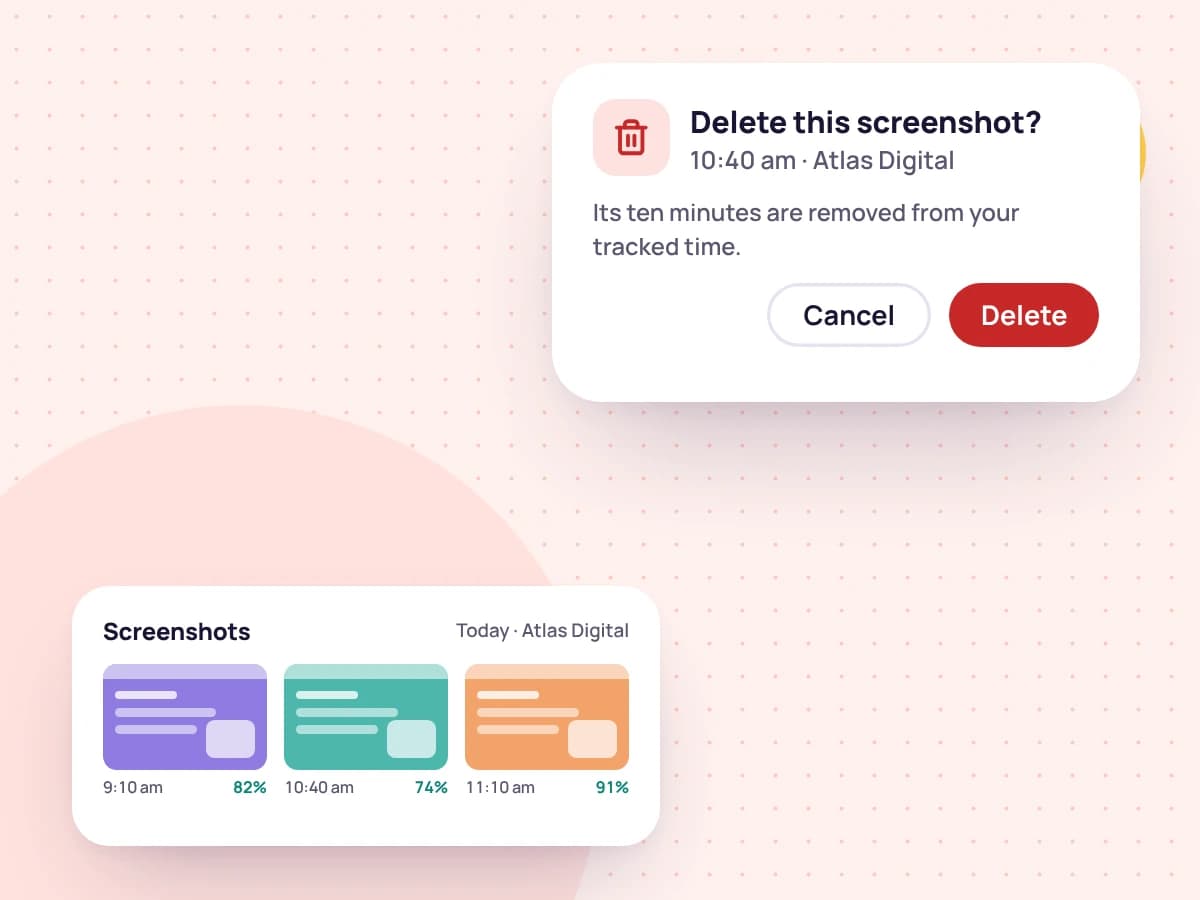
See your timeline and delete any capture you don't want kept; the time it covers comes off the timesheet with it.
Screenshots and activity stay inside your account, shown only to the people allowed to see them.
Your own time, activity levels and screenshots, and you can delete any of your captures.
Their own activity only. Teammates can't open each other's screenshots.
The whole team's days, with time, activity and screenshots, and sets each person's tracking rules.
Nothing, unless you show them. Screenshots are never given a public link.
On your own account, the tracking preferences are yours: how often screenshots are taken, whether keyboard and mouse activity is recorded, and when you count as idle.
When you track for someone else's account, its owner can set the capture frequency, lock screenshots and activity on, set the idle time and require the desktop app. Those rules apply only while you track for that account.
Screenshots
Enforce in the desktop app
Screenshots stay in the account until they're deleted. Anyone can delete their own, and the time they cover comes off the timesheet, so a gap is a clear decision rather than a missing record.
When someone leaves an account, their captures are deleted 30 days later.
FAQ
Still have questions? Talk to our team.
No. The desktop app reads your computer's own record of when you last used the keyboard or mouse. It learns whether you were active, never which keys you pressed or what you wrote.
No. Nothing is recorded while the timer is stopped or paused: no time, no screenshots and no activity.
No. It doesn't keep a list of websites or browsing history. A screenshot shows whatever was on screen at that moment.
You, and the owner of the account you're tracking for. Other teammates can't open them, and screenshots are never given a public link.
After the idle time you or your account owner chose (3, 5, 10 or 15 minutes), the app asks whether to keep the time you were away or discard it.
Yes. You can delete any of your own captures. The time it covers comes off the timesheet with it.
Only for screenshots and activity levels. The web timer tracks time on its own, unless your account owner requires the desktop app.
Start a free 14-day trial and see exactly what's recorded, or book a demo and we'll walk you through the desktop app.