Time tracking with screenshots that proves the work and bills every hour
Tristiks Grow tracks time from your desktop, adds screenshots and activity levels to every hour, and sends it straight to your timesheets and invoices.
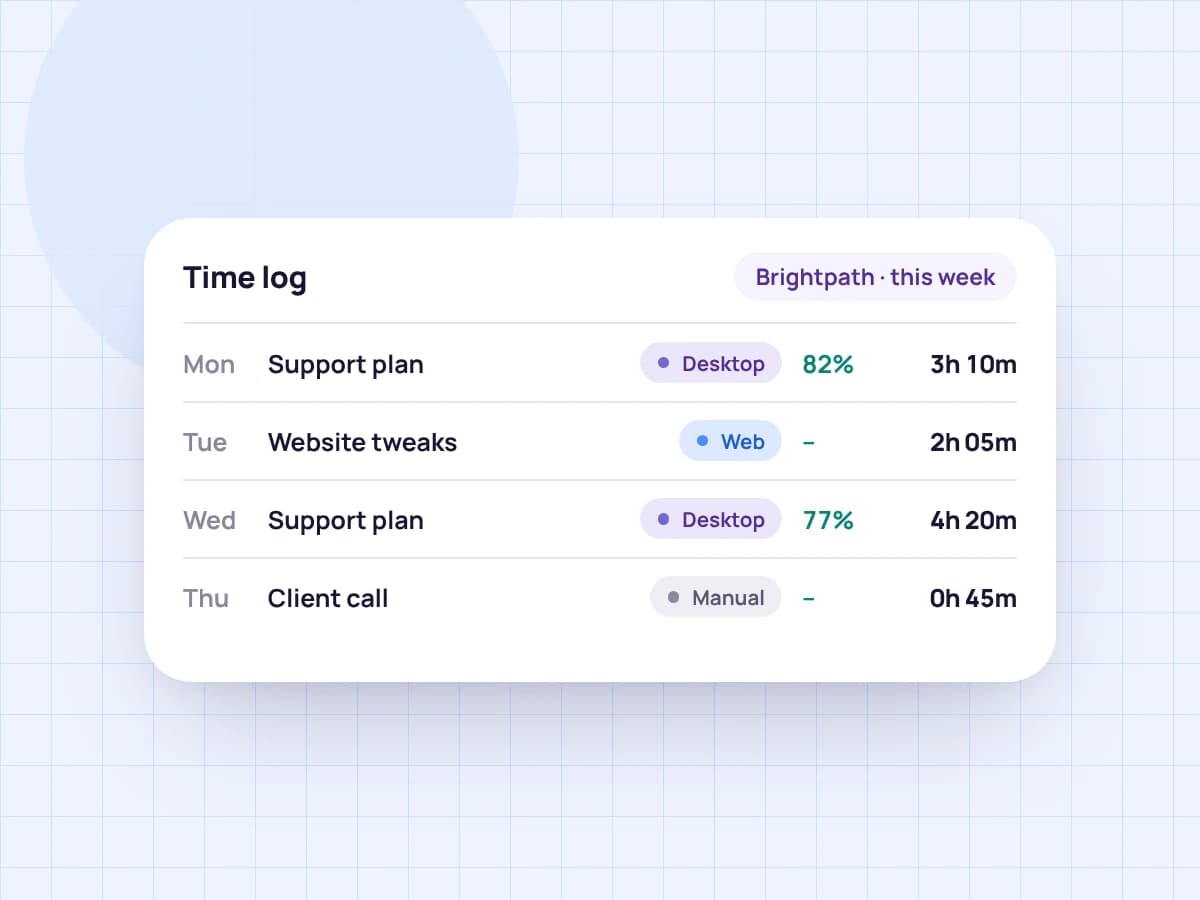
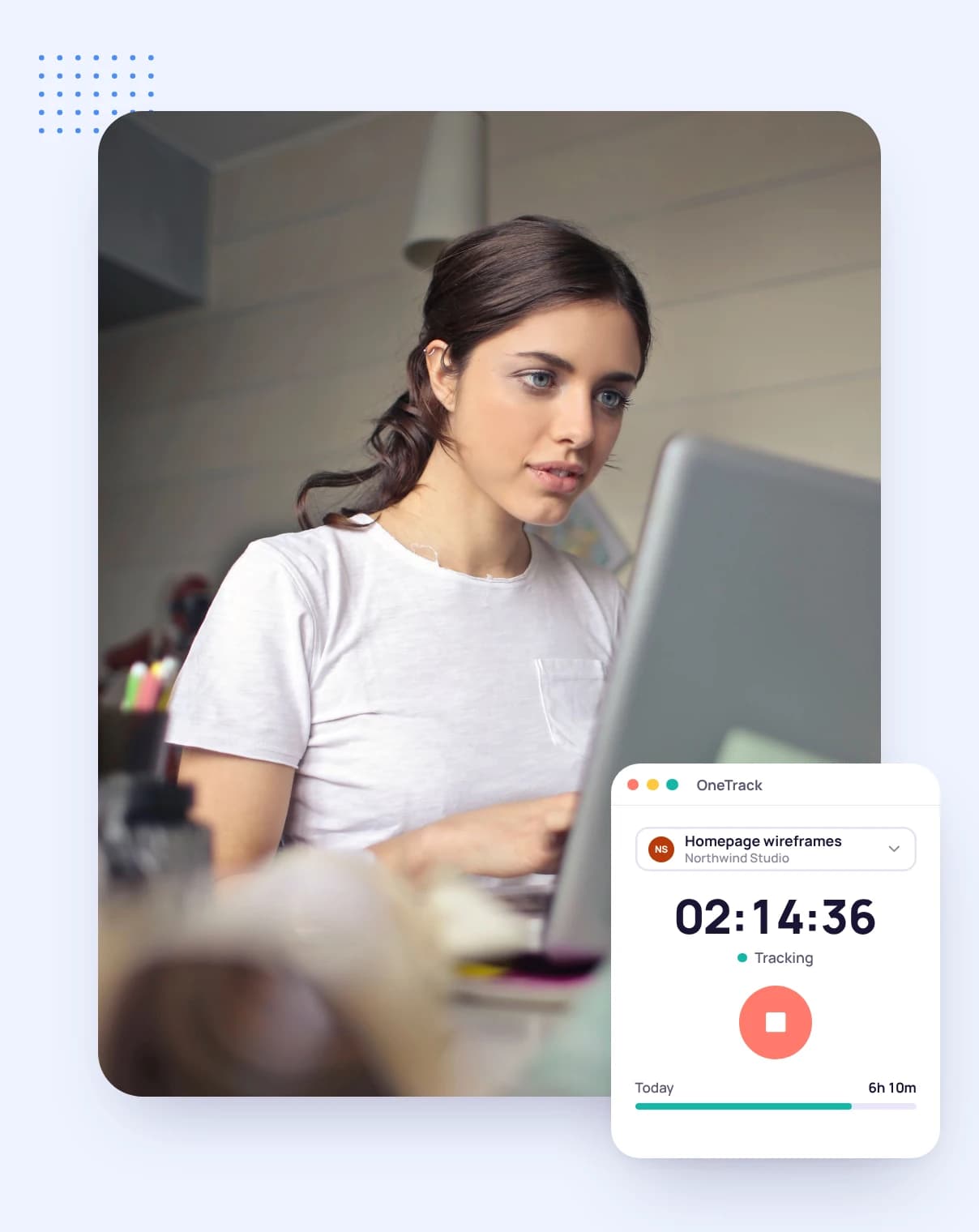
When you bill clients by the hour, they want to know the time was spent on their work, and so do you. Tristiks Grow records time with the desktop app or the web timer, adds screenshots and keyboard and mouse activity to desktop hours, and keeps it all on one timesheet per client, ready to invoice.
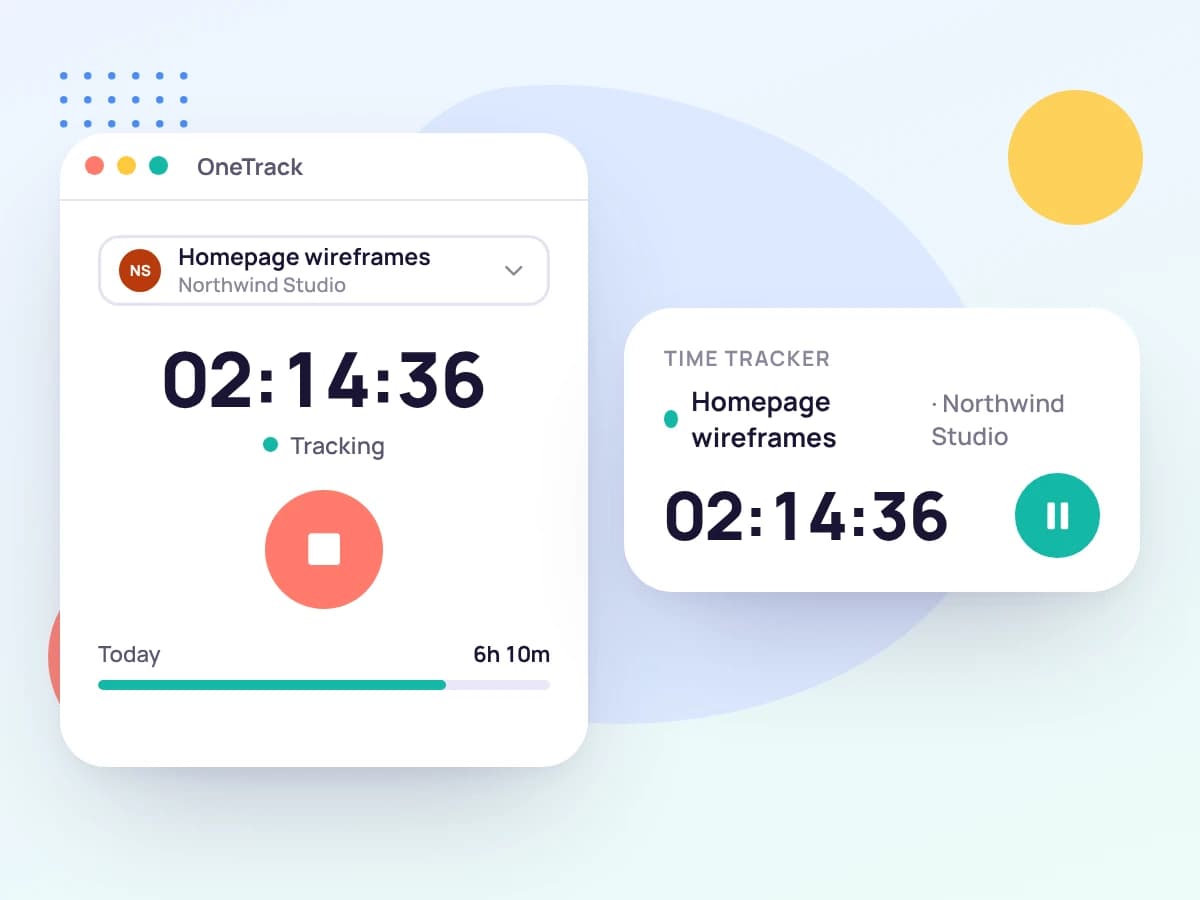
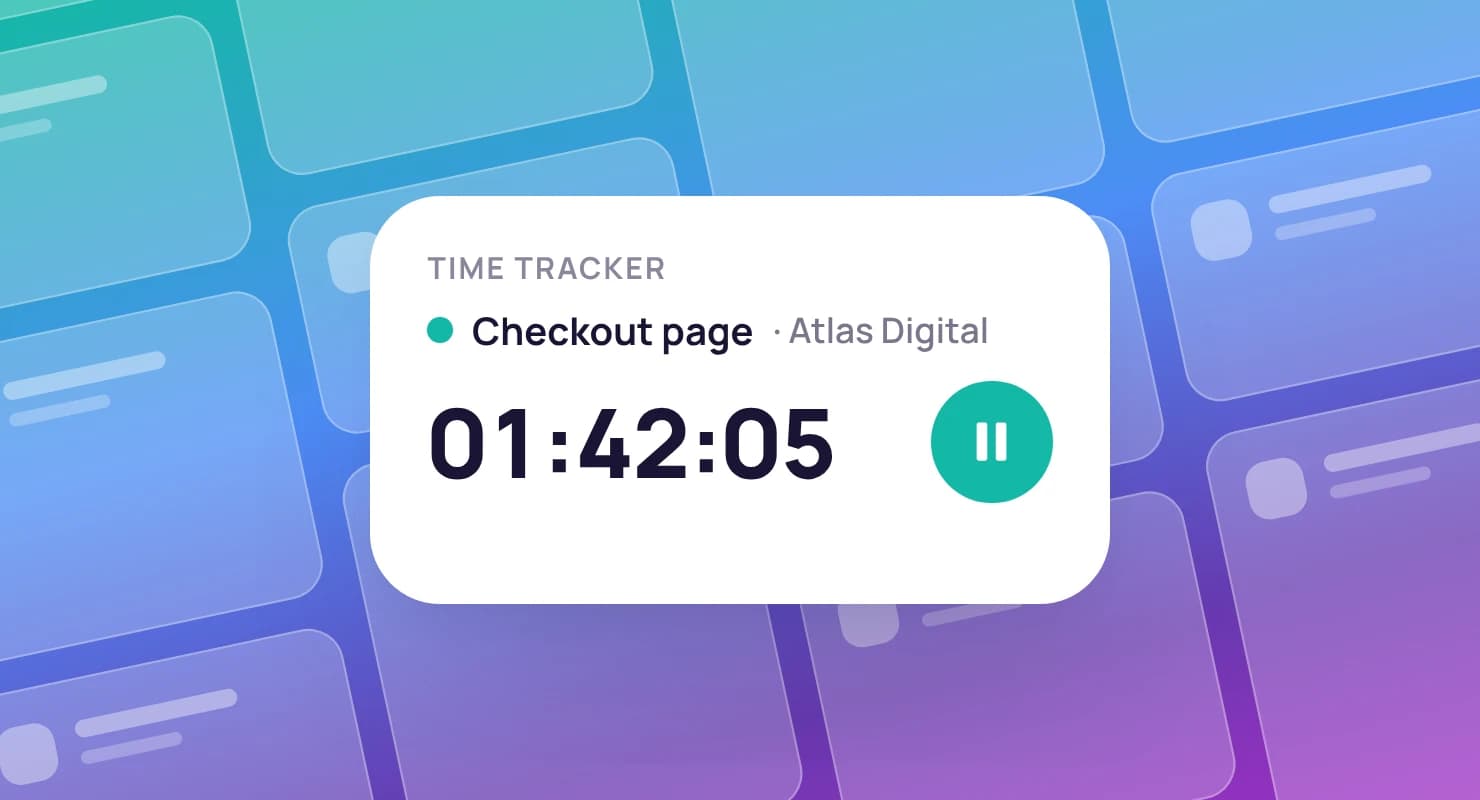
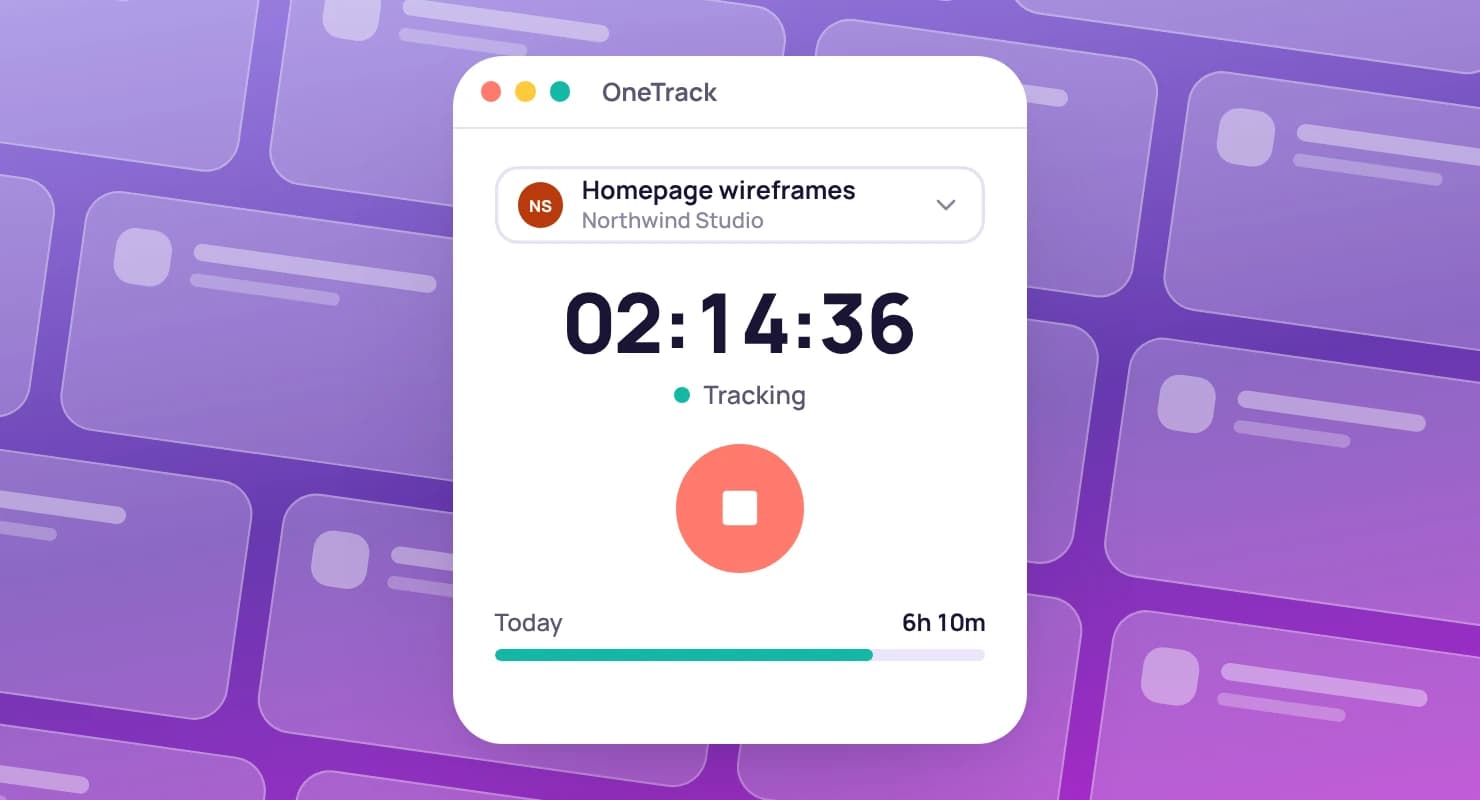
Start the timer in the desktop app or in your browser; both run the same clock, so a timer started on one shows on the other. Pick the client, project and task, and every minute lands on the right timesheet.
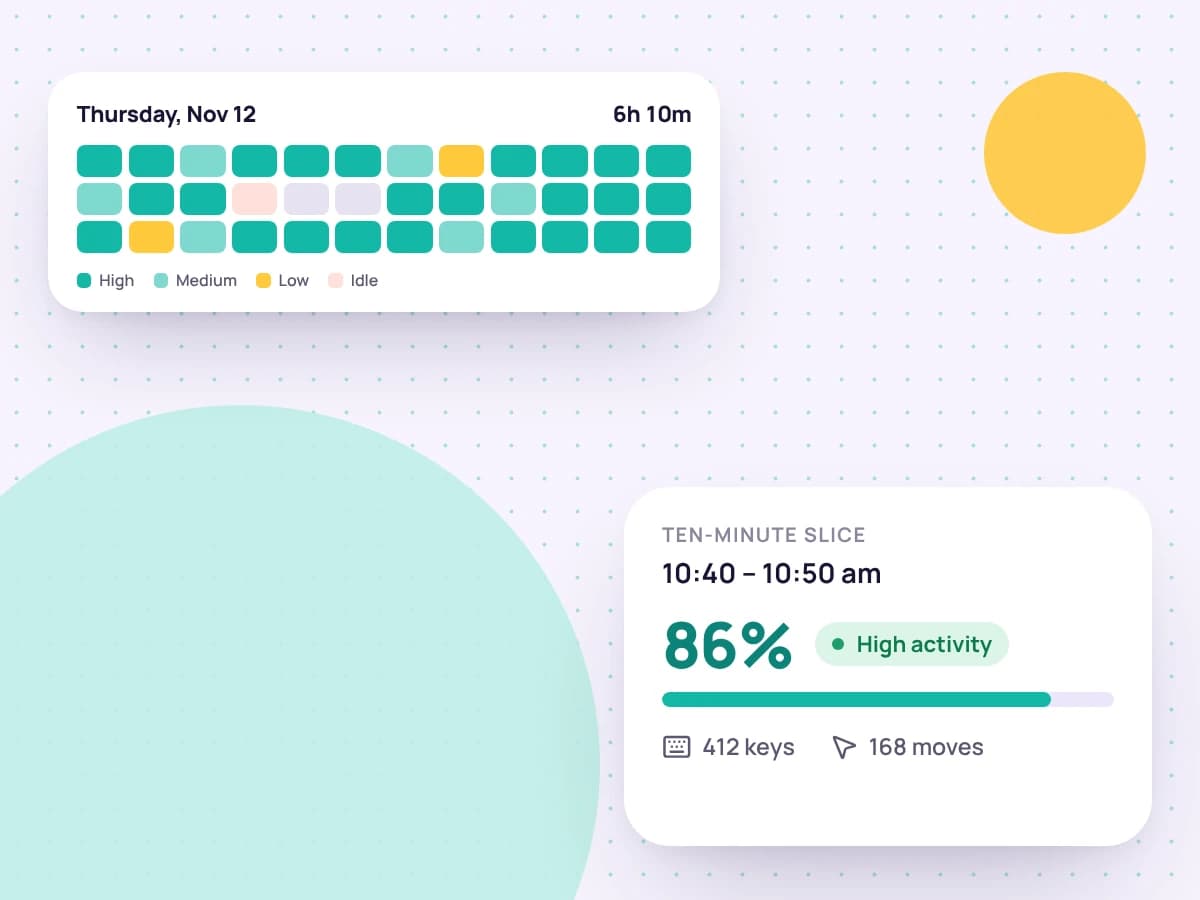
Desktop hours are added up from the activity the app records, ten minutes at a time, so the timesheet always matches the day's timeline and the same time is never counted twice.
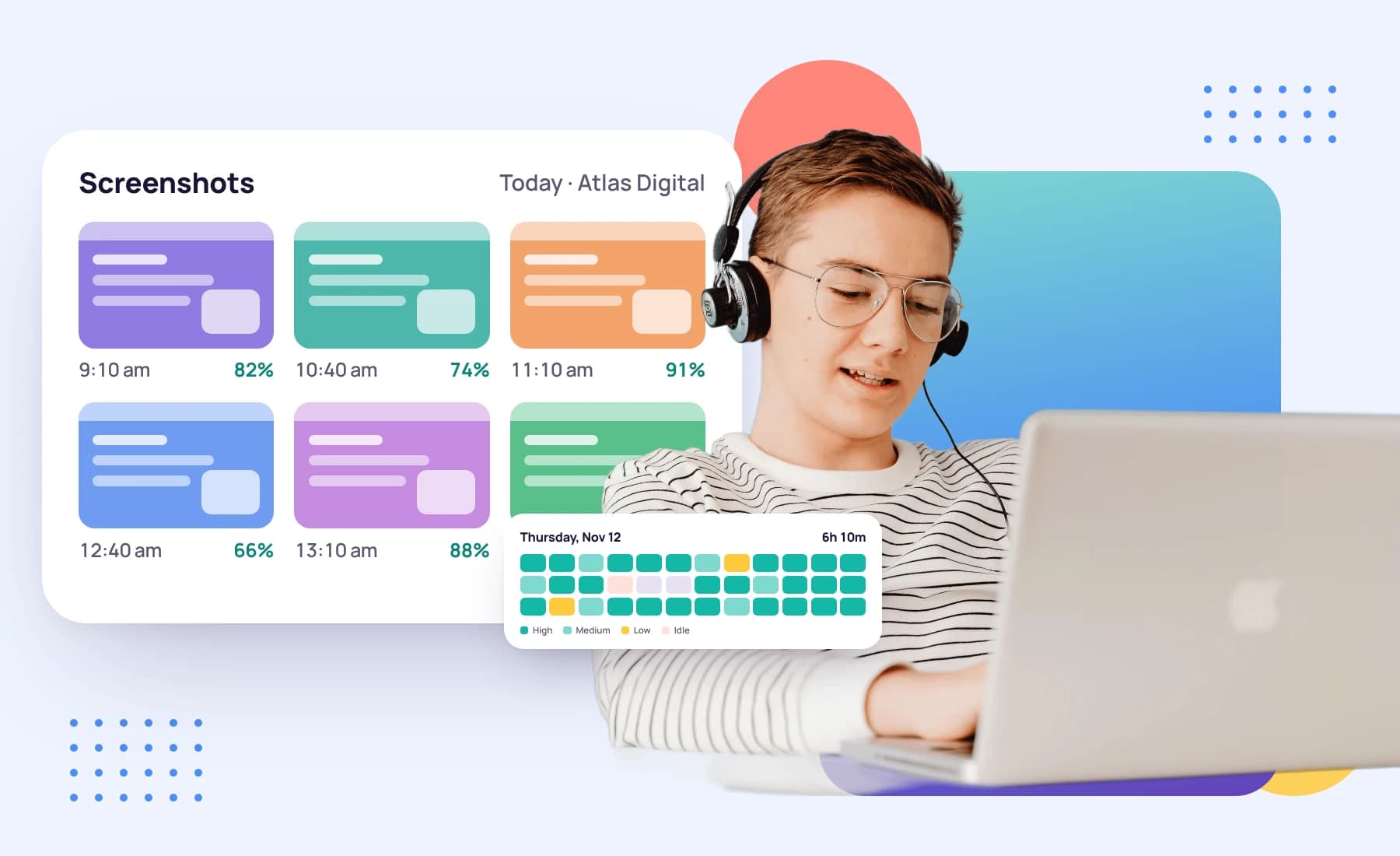
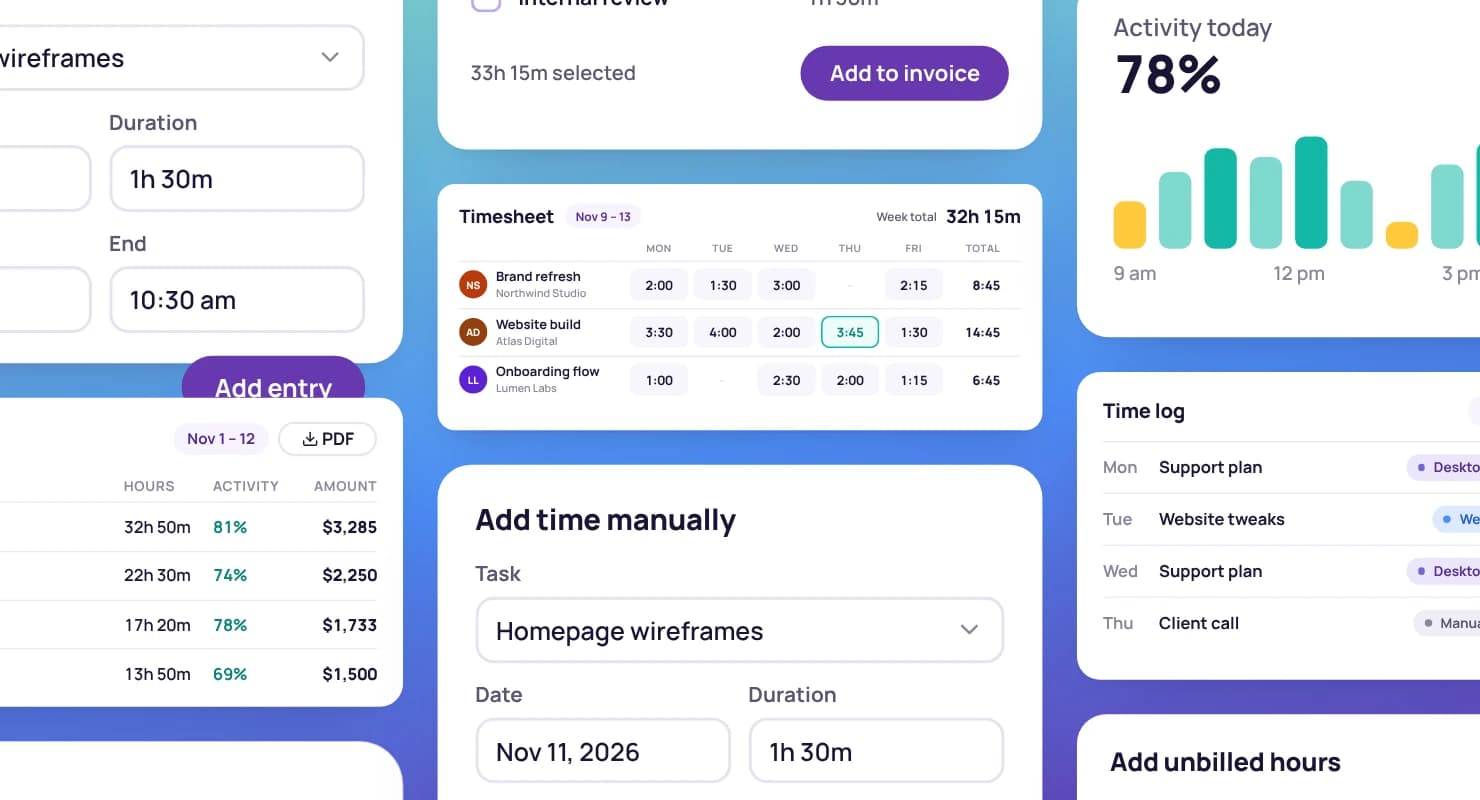
Every ten minutes of tracked time gets an activity level: the share of that time someone was actually at the keyboard or mouse. The app reads your computer's record of when the keyboard or mouse was last used; it never records what you type.
Set an idle threshold, and time spent away from the computer can be discarded before it reaches the timesheet, so a coffee break doesn't end up on an invoice.
Choose how often the app captures the screen, from every 5 to every 60 minutes, and how many captures to take in each window. Captures happen at random moments and cover every monitor.
Account owners can require screenshots, keyboard and mouse tracking for a teammate, or require time to be tracked in the desktop app only.
Each card is ten minutes of work. Open one.
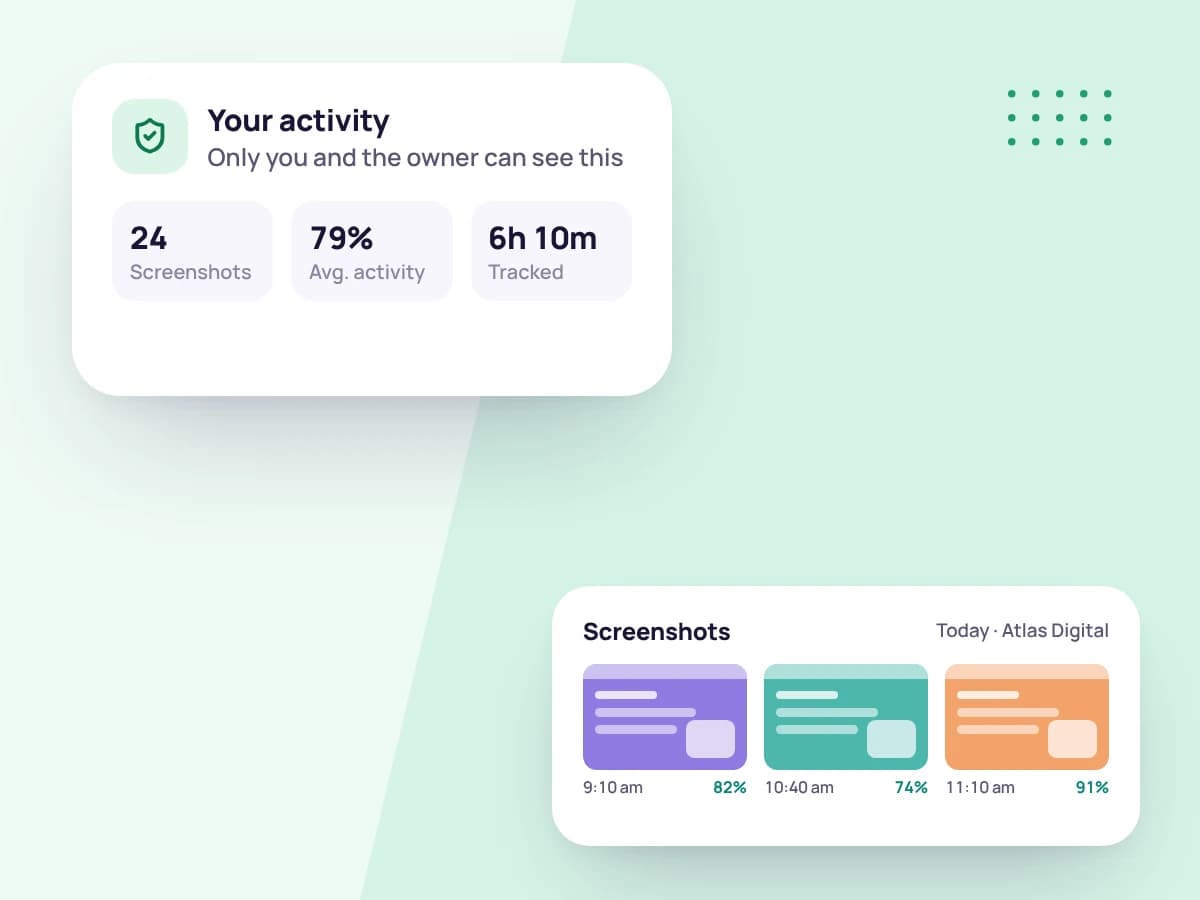
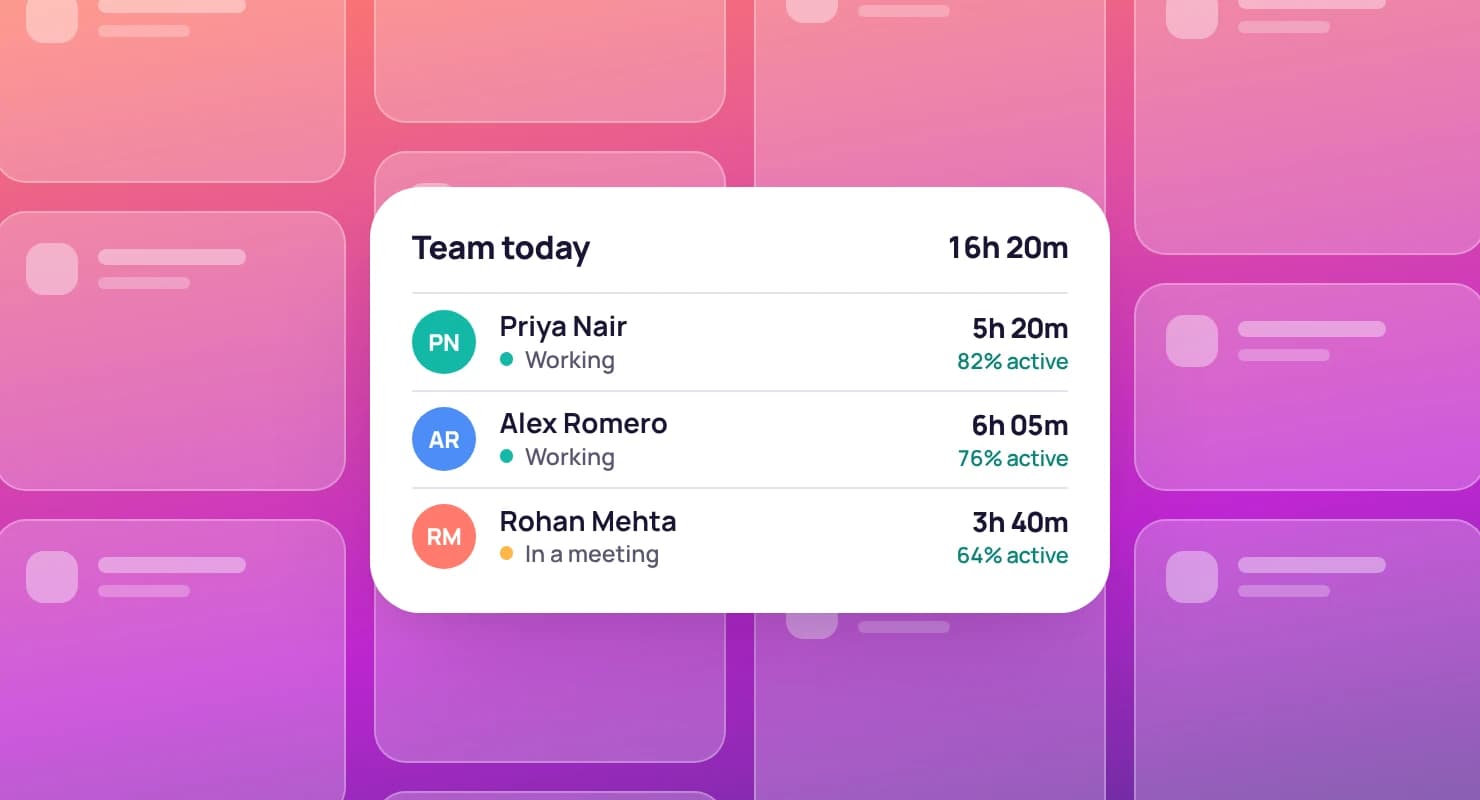
Teammates see only their own activity; account owners see the whole team and can open anyone's day. Screenshots are never given a public link: each one is shown only to people allowed to see it.
Anyone can delete their own captures. Deleting one also takes that stretch of time off the timesheet, so a gap is a clear decision rather than a missing record. When someone leaves your account, their captures are deleted 30 days later.
Hours from the desktop app and the web timer share one timesheet per client, labelled with where they came from, so you can tell a web entry has no screenshots rather than wondering where they went.
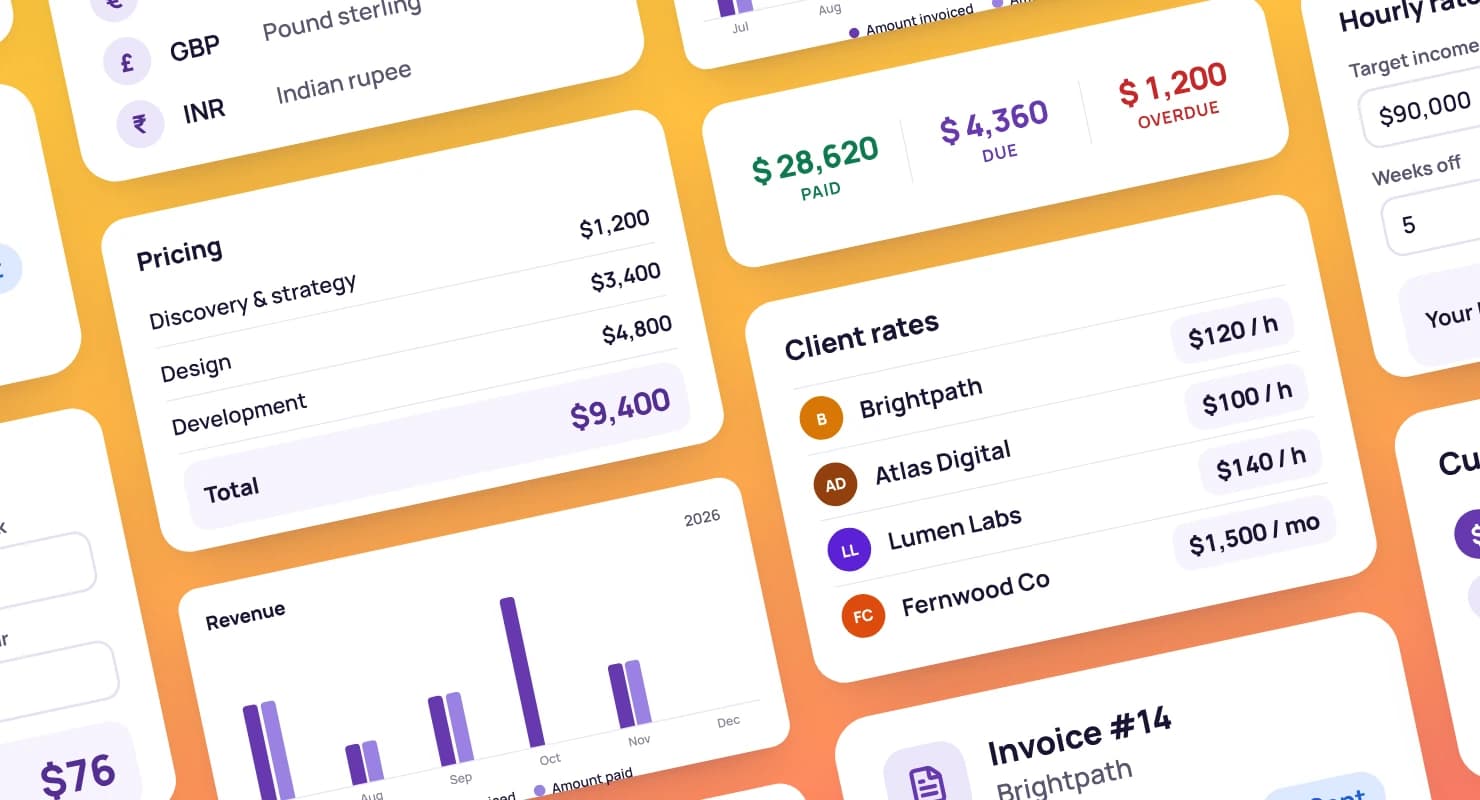
When it's time to bill, add those hours to an invoice in a few clicks. Entries that are already invoiced are locked, so no hour is billed twice.
Lost the connection on a train or in a client's office? The desktop app keeps tracking and sends your time as soon as you're back online, without counting any of it twice.
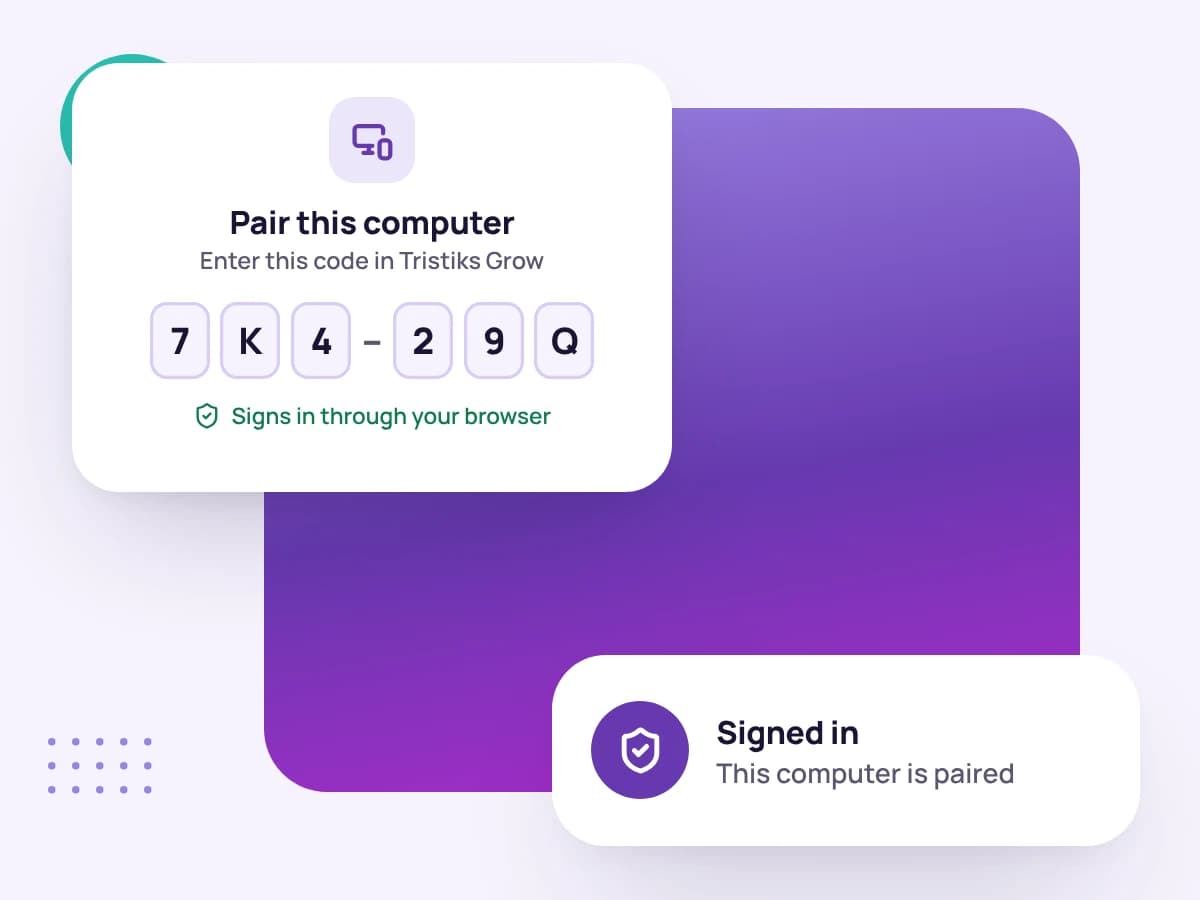
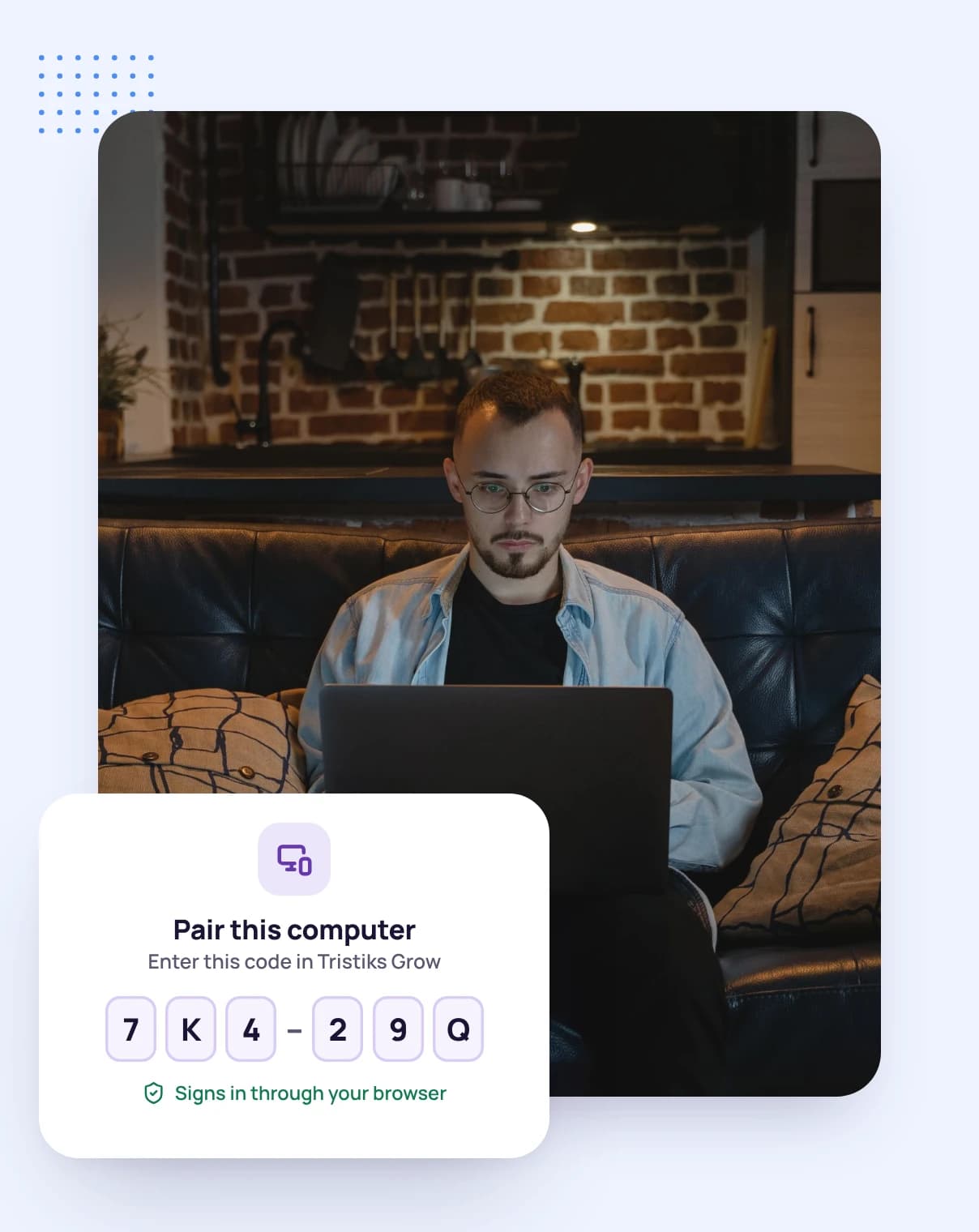
Connect a computer by signing in through your browser, with a one-time link that expires after ten minutes. Sign out in the app and it stops syncing.
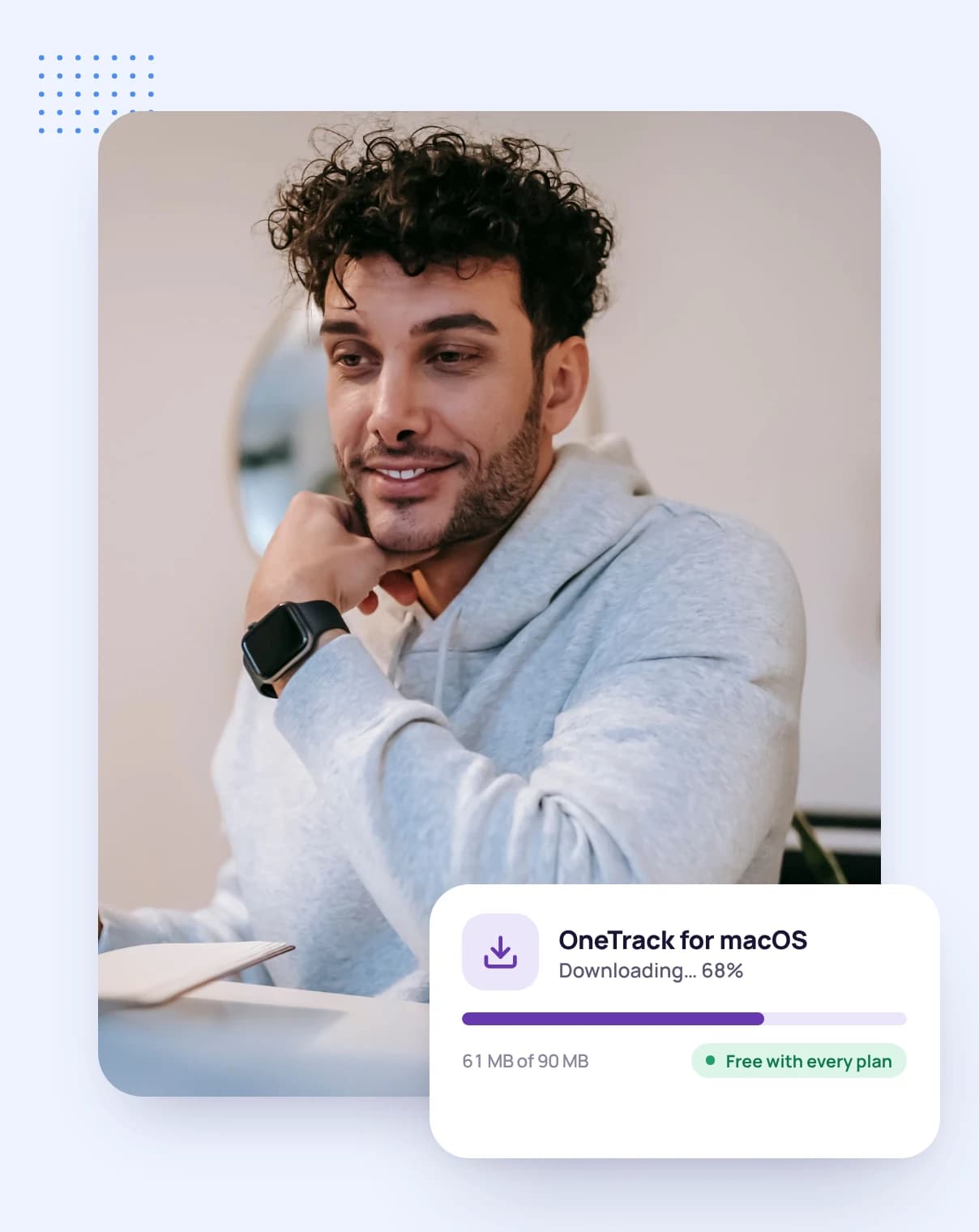
Download OneTrack for macOS, Windows or Linux, or track time in your browser with the web timer. Invite teammates from your account settings.
Click Sign in in the desktop app and confirm in your browser. Then decide how often screenshots are taken and which kinds of tracking are required.
Pick a client, project and task and start tracking. The app runs in the background, and your day appears on a timeline with screenshots and activity levels.
FAQ
Still have questions? Talk to our team.
Screenshots come from OneTrack, the desktop app for macOS, Windows and Linux. While the timer runs, the app captures the screen at random moments within each capture window and uploads the captures with the tracked time, so they appear on that person's timeline for the day.
You choose a capture window of 5, 10, 15, 20, 30 or 60 minutes and how many screenshots to take in each window. The app takes them at random moments inside the window.
Tracked time against a client, project and task; an activity level for every ten minutes, based on how much of that time the keyboard or mouse was in use; idle time; and screenshots, if they're on. It never records what you type.
Yes. A capture covers every connected monitor, and deleting it removes the images of all of them together.
Yes. Anyone can delete their own captures. Deleting a capture also removes the time it covers from the timesheet, so the gap is recorded as a decision rather than looking like missing time.
Screenshots stay in your account until they're deleted. When someone is removed from your account, their screenshots are deleted 30 days after they leave.
Yes. The web timer records time only, with no screenshots or activity levels. An account owner can require a teammate to track in the desktop app instead.
Yes. Every plan starts with a free 14-day trial, and you don't need a credit card to sign up.
Start a free 14-day trial, or book a demo to see how screenshots, activity levels and timesheets work together.