How to Track Your Time at Work: 7 Methods Compared
 By Suraj Rao11 min read
What You'll Learn
- The seven main ways to track time at work range from a paper log to a desktop tracker with screenshots, and each trades effort against accuracy differently.
- Paper, spreadsheets and calendars suit one employer and steady hours; timers and time tracking apps suit anyone billing several clients by the hour.
- Whatever method you pick, tracking in real time against a client and task, and reviewing the week, is what makes it stick.
To track your time at work, record when you start and stop each task, against the client or project it's for, as you go. You can do it on paper, in a spreadsheet or calendar, with an online timer, or with a time tracking app that runs in your browser or on your desktop.
The method matters less than the habit. A paper log you fill in every day beats a clever app you forget to open. But the right method makes the habit much easier, and some methods are far more accurate than others.
Below we compare seven ways to track time, from a paper log to a desktop tracker with screenshots: how each one works, its pros and cons, and who it suits. Then there's a comparison table and some tips for making whichever one you choose stick.
How to track time: what every entry needs
Whatever method you use, each entry needs the same few things:
- when you worked (date, start and end, or a duration);
- what for (client, project and task);
- whether it's billable, if you bill clients;
- a short note on what you did.
A record with those fields can become a timesheet, a report or an invoice. A record without them is just a number. Our guide on how to fill out a timesheet covers each field in detail.
1. Paper log or notebook
The simplest method: a notebook or printed sheet on your desk. When you start a task, write the time and what you're doing. When you stop, write the end time.
Pros
- Nothing to set up or install, and it costs nothing.
- No screen to switch to, so it's quick once it's a habit.
- Some people find writing it down makes them more aware of their time.
Cons
- You have to add everything up by hand.
- Easy to lose, hard to share and impossible to search.
- Copying it into payroll or an invoice is a second job, with room for mistakes.
Best for: people with one employer and steady hours, or anyone trying time tracking for the first time to see where their days go.
2. Spreadsheet timesheet
A spreadsheet (Excel or Google Sheets) with a row per task and columns for date, client, project, task, start, end, break and hours. Formulas add up the hours for you.
Pros
- Free, and most people already know how to use one.
- Formulas do the math, including weekly and billable totals.
- Easy to share with a manager or attach to an invoice.
Cons
- Still manual: you type every start and end time.
- People tend to fill it in on Friday from memory, which loses short tasks.
- Formulas break when someone edits the wrong cell, and version copies multiply.
Best for: freelancers with one or two clients, and small teams that need a simple weekly record. If you go this way, start with our free timesheet template: it works out hours from start and end times and totals billable hours for the week.
3. Calendar blocking
You plan your day in Google Calendar or Outlook as blocks of time ("Client A: homepage", 9 to 11), then adjust the blocks afterwards so they show what really happened. The calendar becomes the time log.
Pros
- Your calendar is already open all day.
- Meetings are recorded automatically, because they're already there.
- It doubles as a plan, which helps if you like to time block your day.
Cons
- It records the plan unless you go back and fix it, and most people don't.
- Calendars don't add up hours by client or flag what's billable.
- Short tasks and interruptions rarely make it in.
Best for: people whose days are mostly meetings, and planners who want to compare the plan with reality. It's weaker as the record you bill from.
4. Online timer or stopwatch
A stopwatch in your browser or on your phone. Start it when you begin a task, pause it for breaks, stop it at the end and write down the time.
Pros
- Exact durations, with no mental math.
- Nothing to sign up for or install.
- Good for focused sessions, like a Pomodoro.
Cons
- A plain timer doesn't save anything, so you still copy each time somewhere else.
- No client, project or task attached to the time.
- It's easy to forget to stop it.
Best for: timing single tasks, checking how long things really take, or freelancers testing whether their estimates are right. Our free online timer runs in your browser with no account; just note the time before you close the tab.
5. Time tracking web app
A web app with a timer and a timesheet in one place. You start a timer on a client, project and task, and when you stop it the entry is saved. You can add or fix entries by hand, and the app adds everything up into reports.
Pros
- Every entry is saved against a client, project and task.
- Totals, reports and billable hours are worked out for you.
- Works from any browser, so it's easy to roll out to a team.
- Many connect to invoicing, so tracked hours become invoice lines.
Cons
- You still have to remember to start and stop the timer.
- A browser tab is easy to close or lose among twenty others.
- Most good ones are paid once you're past a basic free plan.
Best for: freelancers and agencies billing several clients, and teams that need shared timesheets. For a side-by-side look at the apps, see our guide to the best time tracking apps.
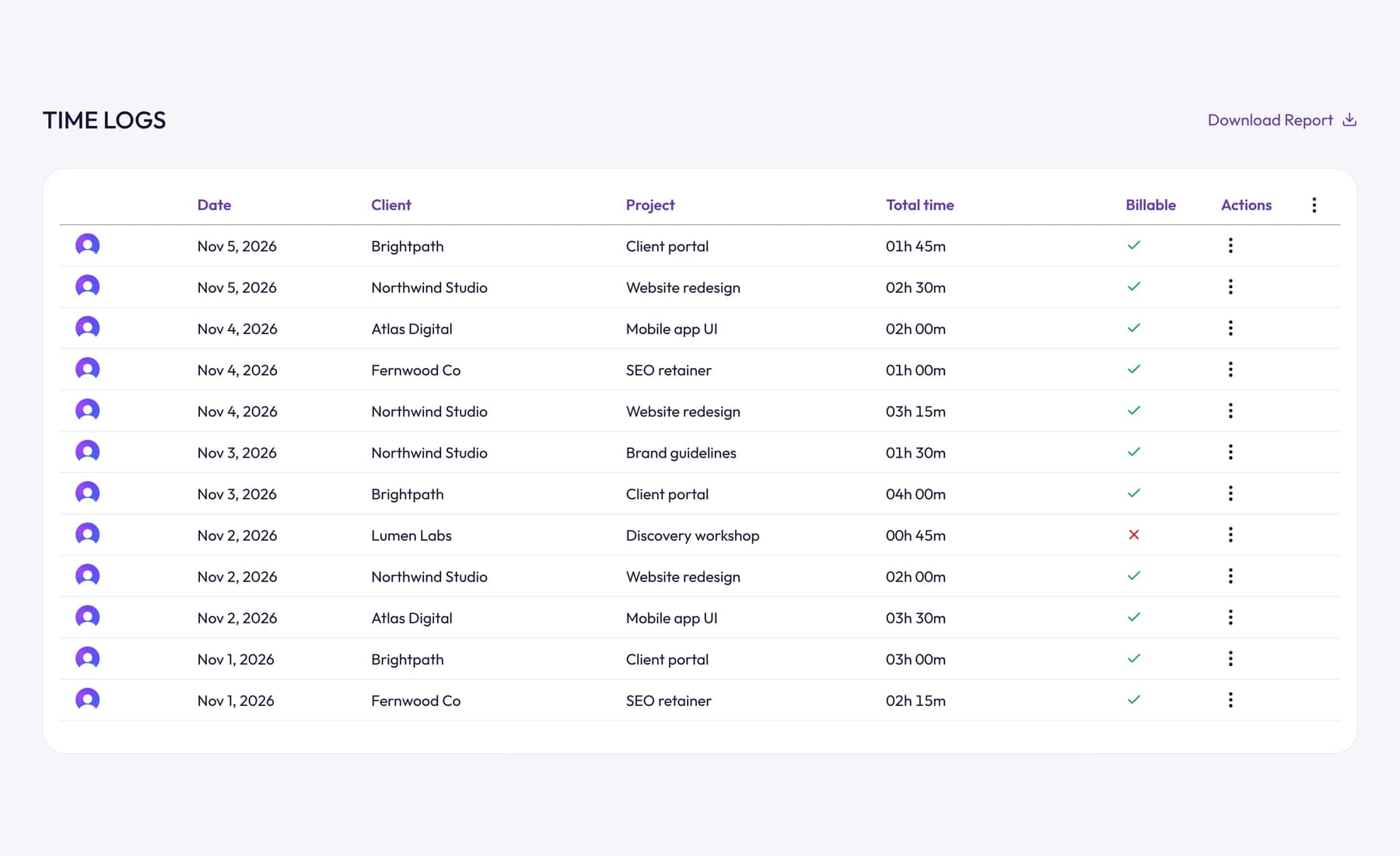
In Tristiks Grow, hours from the web timer and manual entries land on one timesheet per client, each marked billable or non-billable, ready to turn into an invoice.
6. Desktop app with automatic tracking
A desktop time tracker installs on your computer and runs in the background. You start it from the menu bar or system tray, and it keeps tracking whether or not a browser is open. Depending on the app, it can also notice when you've stepped away, record activity levels and keep tracking offline.
Pros
- The timer is always one click away, so you're less likely to forget it.
- Keeps tracking without an internet connection and syncs later.
- Idle detection catches the timer left running over lunch.
- Activity levels show how much of the tracked time was spent at the keyboard and mouse.
Cons
- Needs installing on every computer you use.
- Some desktop trackers record which apps and websites you use, which not everyone is comfortable with. Check what any app records before you install it.
- Away-from-keyboard work (phone calls, sketching, reading on paper) needs to be kept or added by hand.
Best for: people who work at a computer all day, switch between several clients, and want the most accurate record with the least effort.
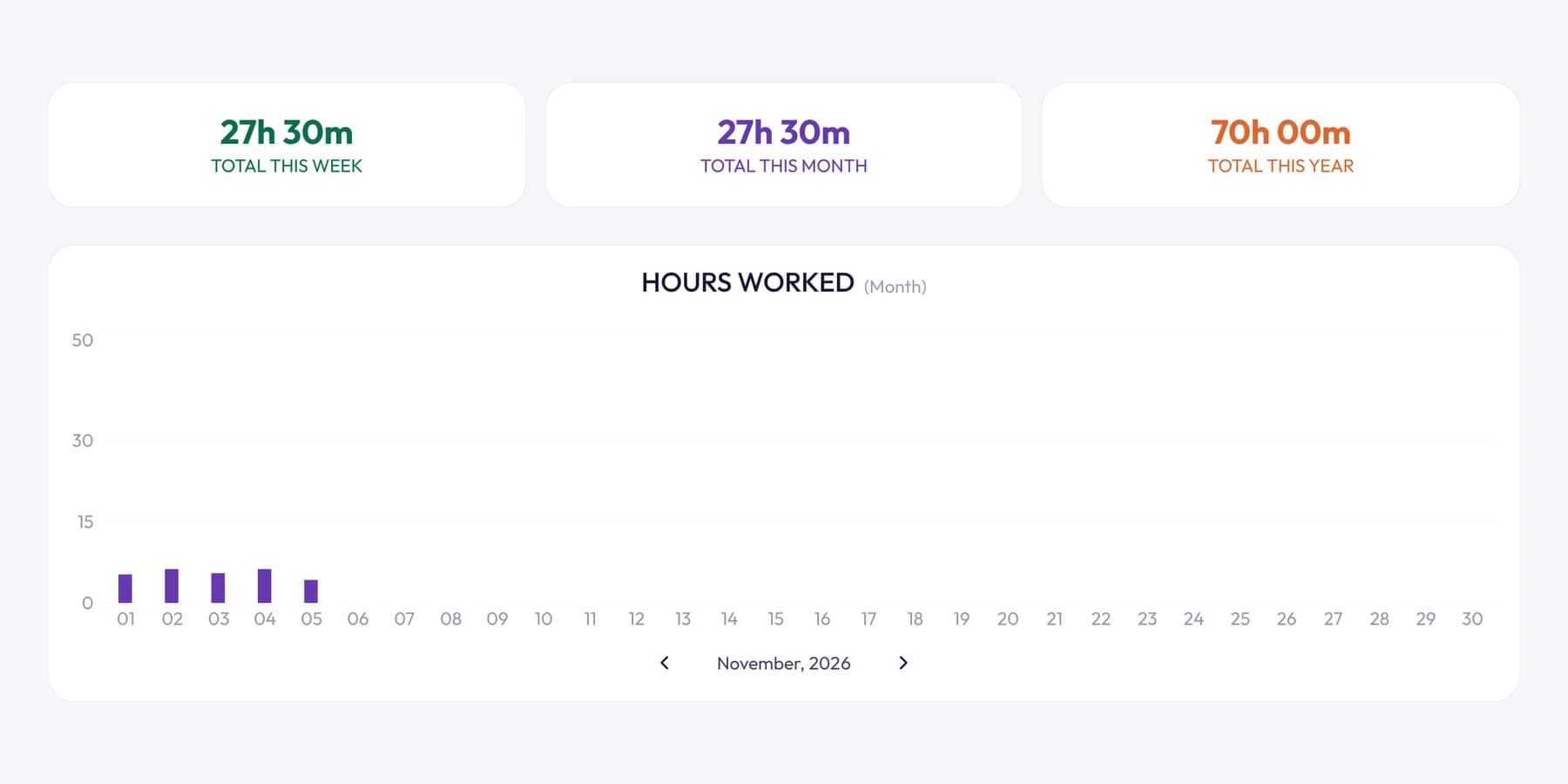
This is what OneTrack, the desktop app for Tristiks Grow, does on macOS, Windows and Linux. It runs from the menu bar or tray, keeps tracking offline and records an activity level for every ten minutes of tracked time, without ever recording what you type. After 3, 5, 10 or 15 minutes without keyboard or mouse input (you choose), it asks whether to keep or discard the time you were away. Our guide to idle time explains how that works. You can download OneTrack for any of the three.
7. Time tracker with screenshots
Some desktop trackers also take screenshots while the timer runs, so there's a visual record of the work behind each block of time. Teams and clients use them to verify billable hours, and remote workers use them to show their work without status reports.
Pros
- Proof of work for clients who question an invoice.
- Helps managers of remote teams see progress without constant check-ins.
- Makes disputes about hours quick to settle, for both sides.
Cons
- Can feel intrusive if it's introduced without explanation.
- Screenshots can capture private or confidential information.
- Employee monitoring laws vary by country and state, so employers need to check what's required (notice, consent, retention).
Best for: agencies and remote teams that bill clients by the hour and need to show the work, and freelancers whose clients ask for proof. It works best when everyone knows what's captured and why.
With OneTrack, screenshots are optional. You choose how often they're taken, from every 5 to every 60 minutes; they're captured at random moments in each window and cover every monitor. Anyone can delete their own captures, and deleting one also takes that stretch of time off the timesheet. (On Linux, screenshots work on X11 only.) See how tracking works for exactly what's recorded, and our guides to employee productivity tracking and whether screenshot monitoring is legal before you roll it out to a team.
Time tracking methods compared
| Method | Effort | Accuracy | Totals and reports | Billing-ready | Cost | Best for |
|---|---|---|---|---|---|---|
| Paper log | High | Low to medium | By hand | No | Free | Trying it out, one employer |
| Spreadsheet | Medium | Medium | Formulas | With copying | Free | One or two clients |
| Calendar | Medium | Low to medium | No | No | Free | Meeting-heavy days |
| Online timer | Medium | High per task | No | No | Free | Timing single tasks |
| Web app | Low to medium | High | Yes | Often | Free to paid | Freelancers, agencies |
| Desktop app | Low | High | Yes | Often | Usually paid | Full days at a computer, several clients |
| With screenshots | Low | High, with proof | Yes | Often | Usually paid | Remote teams, clients who want proof |
Accuracy here assumes you use each method as intended. Any method filled in from memory at the end of the week is low accuracy.
How to choose a time tracking method
Ask yourself four questions:
- Do you bill by the hour? If yes, you need entries against a client and task, and a way to get them onto an invoice. That rules out a plain timer or a calendar as your main record.
- How many clients or projects do you switch between? One or two: a spreadsheet can cope. Three or more: a timer that saves entries will save you time and money.
- Do you work at a computer all day? If so, a desktop app is the lowest-effort option. If you're on site or on the phone a lot, a web or mobile timer plus manual entries fits better.
- Does anyone need proof? If clients or managers question hours, activity levels or screenshots settle it, as long as everyone knows they're on.
For a small team, the answer is usually the same tool for everyone, so timesheets, reports and invoices come from one place. That's what we built Tristiks Grow for small businesses to do.
Tips for making time tracking stick
Most people don't fail at time tracking because of the tool. They fail because the habit fades after two weeks. These help:
- Track in real time. Start the timer when you start the task. Filling it in later is when hours go missing.
- Keep the timer one click away. A menu bar app, a pinned tab or a notebook on the desk, wherever you'll actually see it.
- Track everything for two weeks, billable or not, before you decide anything. The first surprise is usually how much time admin takes.
- Use clear client, project and task names so entries need no explanation later.
- Fix mistakes the same day. Forgot the timer? Add a manual entry before you log off.
- Review the week every Friday in ten minutes: gaps, untagged entries, timers left running.
- Use the data. Compare tracked time with estimates and use it to price the next job. Tracking you never look at is just admin.
- For teams, explain the why. People track more accurately when they know it's about billing and planning, not surveillance.
Frequently asked questions
What is the best way to track time at work?
The best way is the one you'll use every day. For most people who bill clients, that's a time tracking app with a timer, because it saves each entry against a client and task and adds up the hours. If you work at a computer all day, a desktop app is the least effort.
How do I track my time without an app?
Use a paper log or a spreadsheet. Write the start time, end time, client and task for each block of work as you go, then add up each day. A free spreadsheet template with formulas makes the totals automatic.
How do I track time spent on tasks?
Start a timer when you begin a task and stop it when you switch, with the task named on the entry. Over a week or two, you'll see exactly how long each kind of task takes, which helps you plan and estimate.
Is it legal for employers to track employees' time?
Recording hours worked is normal, and in many countries employers are required to keep time records. Monitoring with screenshots or activity data has extra rules that vary by country and state, such as giving notice. Check the rules where you and your team work, and get legal advice if you're unsure.
How do I remember to track my time?
Keep the timer visible, start it at the beginning of every task rather than at the end, and use idle reminders if your tracker has them. A short review at the end of each day catches anything you missed.
Wrap up
There's no single right way to track time at work. Paper and spreadsheets are fine for steady hours and one employer. Once you bill several clients by the hour, a timer that saves each entry, or a desktop tracker that runs in the background, pays for itself in hours you'd otherwise lose.
Try timing your next task with our free online timer, or download OneTrack and let it build your timesheet as you work.
Category: Time Tracking
Suraj Rao
Suraj Rao is the founder of Tristiks, the team behind Tristiks Grow and its desktop time tracker OneTrack. He writes about time tracking, client work and getting paid, and about DevOps, cloud and AI from years of building software.