Best Time Tracking Apps in 2026 (Compared)
 By Suraj Rao15 min read
What You'll Learn
- The best time tracking app depends on one question first: do you need proof of work (screenshots and activity), or just accurate hours?
- If you bill clients, pick an app where tracked hours become invoices without copying them between tools, because that hand-off is where billable time gets lost.
- Run a one-week trial with two shortlisted apps on real client work, then compare the timesheets they produce before you commit.
The best time tracking apps in 2026 are Toggl Track for simple timers, Clockify for a free team plan, Harvest for time plus invoicing, Hubstaff and Time Doctor for monitored remote teams, and Tristiks Grow if your tracked hours need to become proposals and invoices for clients. The right one depends on how you work.
So rather than one ranked list, this guide sorts the best time tracking apps by use case: freelancers, agencies, remote teams and developers. You'll get a comparison table, a short review of each of nine apps, "best for" labels and a checklist for choosing.
A quick disclosure: we make Tristiks Grow, so it's on the list. We've tried to be fair to everyone else, and every fact about another app comes from that app's own website, as of November 2026.
The best time tracking apps at a glance
Here are the nine apps side by side. "Not listed" means we couldn't find the feature on the app's own site, not that it definitely doesn't exist.
| App | Best for | Screenshots | Invoicing | Desktop apps | Free plan |
|---|---|---|---|---|---|
| Tristiks Grow | Freelancers and agencies who invoice clients | Optional, in the desktop app | Yes | macOS, Windows, Linux | No (14-day free trial) |
| Toggl Track | Simple timers with no monitoring | No, by design | PDF invoices from reports | Windows, macOS | Yes, for small teams |
| Clockify | A free plan for a whole team | On Pro and up | From Standard | Mac, Windows, Linux | Yes |
| Harvest | Time and invoicing for small teams | Not listed | Yes, on every plan | macOS, Windows | Yes, 1 seat and 2 projects |
| Hubstaff | Remote and field teams with payroll | Optional | Yes | Windows, macOS, Linux | No (14-day free trial) |
| Time Doctor | Workforce visibility for distributed teams | Yes | Not listed | Windows, Mac, Linux | No (14-day free trial) |
| DeskTime | Automatic tracking for office and hybrid teams | On Premium and up | Not listed | Windows, Mac | No (14-day free trial) |
| TimeCamp | A feature-rich free plan | On Ultimate and up | From Starter | Windows, macOS, Linux | Yes |
| Everhour | Teams that live in Asana, Jira or Trello | On the Team plan | Yes | Mac, Windows | Yes, up to 5 seats |
We don't quote prices here, because they change often. Each review below links to the app's own pricing page.
How we compared them
We read each app's pricing page, feature pages and help docs in November 2026 and only included what those pages say. Where a feature sits on a higher plan, we say so.
We scored nothing, because a "best" app for a five-person design studio is a poor fit for a 200-person support team. Instead, each review answers three questions:
- Who is it for? The kind of team it suits best.
- What does it do well? Its real strengths, in its own words where possible.
- What should you know first? Plan limits or design choices that matter before you commit.
For the full side-by-side details on some of these apps, our comparison pages go deeper on features and plans.
The 9 best time tracking apps, reviewed
1. Tristiks Grow: best for freelancers and agencies who invoice clients
Who it's for: freelancers, consultants, agencies and small teams who bill clients for their time and want the whole job in one place.
We put Tristiks Grow first for one reason: if you invoice clients, it covers the work from a signed proposal to a paid invoice, and none of the other apps here list proposals and contracts. If you don't invoice anyone, skip ahead.
What it does well:
- Desktop tracking with proof of work. OneTrack, the desktop app for macOS, Windows and Linux, runs from the menu bar or system tray. It records an activity level for every ten minutes of tracked time and can take optional screenshots at random moments in a capture window you choose (5 to 60 minutes). It never records what anyone types.
- Fair idle time. When you step away, OneTrack asks whether to keep or discard the idle time, with a threshold you set between 3 and 15 minutes.
- Offline tracking. The desktop app keeps tracking without a connection and syncs when you're back.
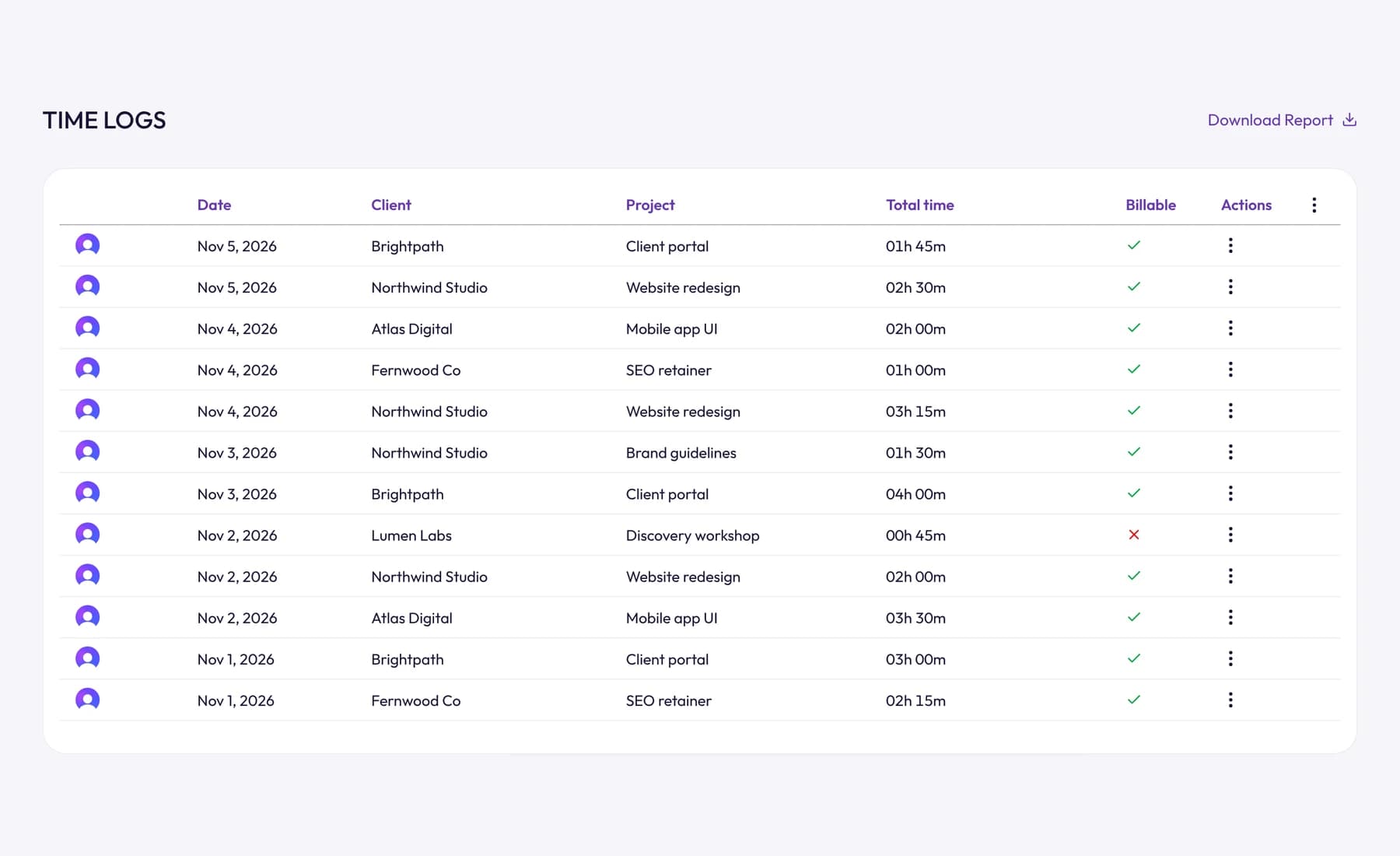
- One timesheet per client. Hours from the desktop app, the web timer and manual entries land on the same timesheet, ready to bill. Entries are locked once invoiced.
- Proposals, contracts, invoices and expenses. Send branded proposals, get them signed online, invoice from tracked hours and expenses, and let automatic payment reminders follow up.
- A task board. Tasks sorted by due date, with time tracked on every card.
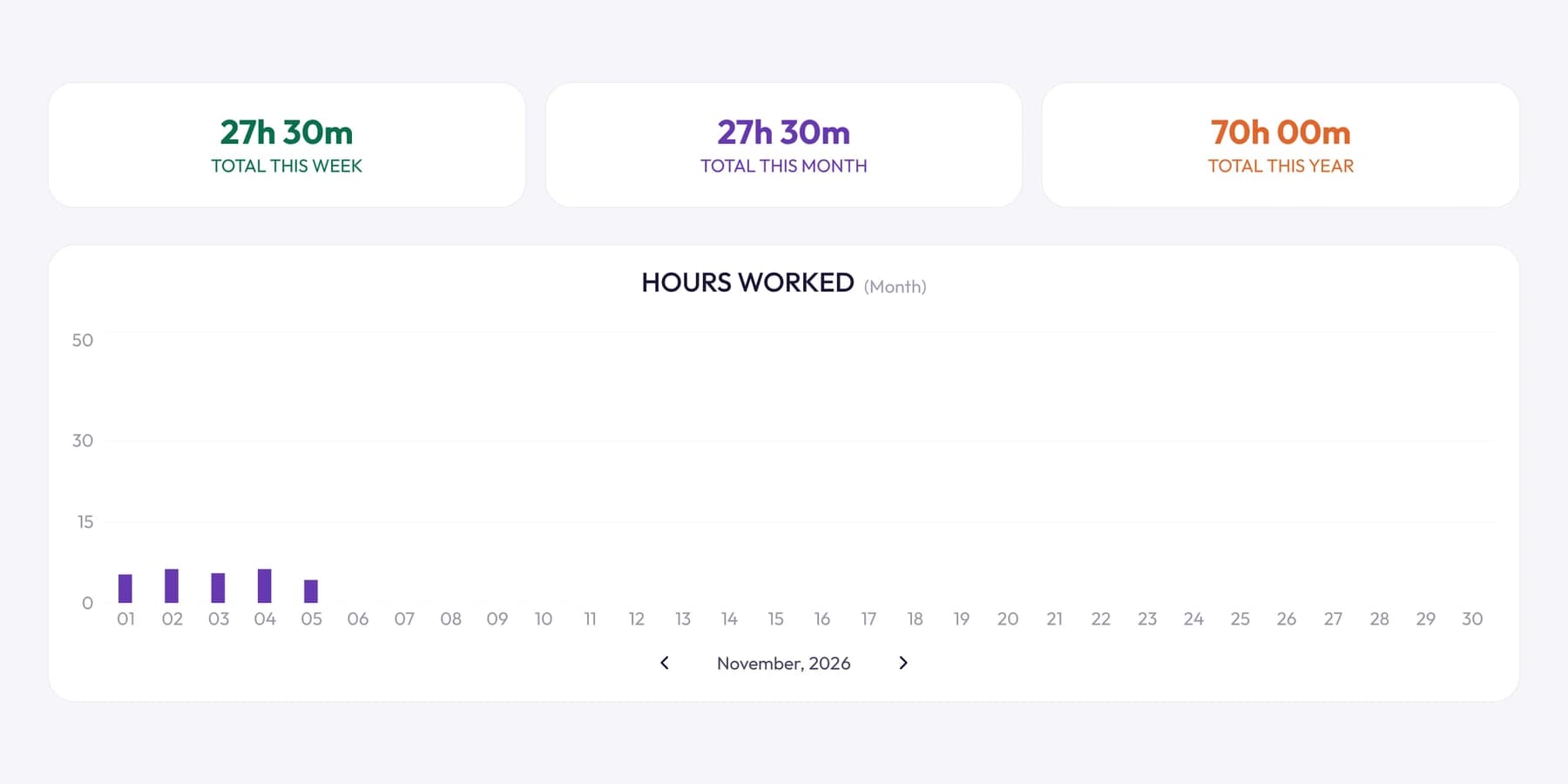
What to know first: there are no mobile apps (it's web and desktop), and there's no free plan, though every plan starts with a free 14-day trial and no card is needed. Online card and PayPal payments on invoices are coming soon, not available yet. On Linux, screenshots work on X11 only. See Tristiks Grow pricing.
2. Toggl Track: best for simple timers with no monitoring
Who it's for: individuals and teams who want quick, low-friction timers and are firmly against monitoring.
What it does well:
- No surveillance, stated plainly. Toggl's pricing FAQ says it doesn't monitor employees, take screenshots or record keystrokes, browsing history or location. If that's a dealbreaker for your team, Toggl is the clearest choice.
- Timers everywhere. Web, Windows and macOS desktop apps, iOS and Android, and Chrome and Firefox extensions. There's also a built-in Pomodoro timer and idle time detection.
- Private activity timeline. The desktop app can record which apps and sites you used, so you can turn them into time entries yourself.
- Planning on higher plans. Billable rates and project estimates from Starter; timesheet approvals and profitability reports on Premium, along with Jira and Asana integrations.
What to know first: invoicing is light. Toggl's help center explains that you create an invoice from a Summary or Detailed report and download it as a PDF. It doesn't send invoices or track payments, so most people pair it with an invoicing tool. The free plan suits small teams (their FAQ says up to 3 users). See Toggl Track pricing.
3. Clockify: best free plan for a whole team
Who it's for: teams that want everyone tracking time without paying per head on day one.
What it does well:
- A generous free tier. The free plan covers the timer, timesheets, reports, idle detection and reminders, and mobile and desktop apps.
- Apps on every platform. Desktop apps for Mac, Windows and Linux; extensions for Chrome, Firefox and Edge; iOS and Android; and a shared kiosk for clocking in and out.
- Invoicing as you grow. Invoicing, recurring invoices and timesheet approval come with the Standard plan. Expenses, multiple currencies and GPS tracking come with Pro.
- Optional monitoring. On Pro and above, an activity monitoring agent can take screenshots at an interval you set. Clockify's help docs say screenshots are blurred by default and deleted automatically after 60 days.
What to know first: features step up plan by plan, so check which tier holds what you need (invoicing and monitoring aren't on the free plan). See Clockify pricing.
4. Harvest: best for time and invoicing in one simple tool
Who it's for: small agencies and consultancies who want hours, expenses and invoices without a lot of setup.
What it does well:
- Invoicing on every plan, including the free one, along with expense tracking and project estimates.
- A well-connected ecosystem. Harvest lists more than 50 core integrations, and accounting and payment integrations (including Stripe, QuickBooks Online and Xero) on its Teams plan.
- Reporting for larger teams. Team capacity and utilization reports on Teams; timesheet approval and profitability reporting on Enterprise.
- Apps for macOS and Windows desktops and iOS and Android phones.
What to know first: Harvest's pricing page doesn't mention screenshots or activity monitoring, so look elsewhere if you need proof of work. The free plan is limited to 1 seat and 2 projects. See Harvest pricing.
5. Hubstaff: best for remote and field teams that run payroll from tracked time
Who it's for: managers of remote, hybrid or mobile workforces who want time, proof of work and payments in one system.
What it does well:
- Thorough, configurable monitoring. Activity levels from keyboard and mouse use, optional screenshots that can be blurred, and app and URL tracking. Hubstaff says it never logs keystrokes, and users can delete their own screenshots (which also removes that time).
- Payroll and payments. Approved timesheets can trigger payments through providers such as Wise, PayPal and Payoneer, and tracked hours can become invoices.
- Field work. Mobile apps for Android and iOS, with GPS location tracking and geofenced job sites through its Locations add-on.
- Every desktop. Apps for Windows, macOS and Linux, plus Chrome and Firefox extensions.
What to know first: features are spread across Starter, Grow, Team and Enterprise plans, so compare tiers carefully. There's no free plan, but there is a 14-day free trial. We compare it with our own tool in detail in Tristiks Grow vs Hubstaff. See Hubstaff pricing.
6. Time Doctor: best for workforce visibility in larger distributed teams
Who it's for: operations and HR leaders running distributed teams, including outsourcing, healthcare, finance and technology companies.
What it does well:
- Proof of work. Screenshots from its Basic plan, with video screen recording on Premium (or as an add-on on lower plans). Time Doctor describes them as optional and configurable.
- Web and app usage reporting and an activity summary for each day.
- Payroll-ready reports and time approvals, so managers can verify hours before payroll.
- Client access. A client login on Premium, useful if your clients want to see the hours.
- Platforms: Windows, Mac, Linux, Chrome and mobile apps, with offline tracking.
What to know first: its focus is managing a workforce, not billing clients. Its pricing page doesn't mention invoicing. There's no free plan; the 14-day trial gives you its Premium features. See Time Doctor pricing.
7. DeskTime: best for automatic tracking in office and hybrid teams
Who it's for: companies that want time tracked automatically from the moment people start work, with attendance and scheduling alongside.
What it does well:
- Automatic time tracking from its desktop app, with URL and app tracking, document title tracking and productivity calculations.
- People operations. An absence calendar and shift scheduling (scheduling is on Premium).
- Screenshots on Premium and above.
- Integrations with Google Calendar and Outlook on Pro, and with Jira, Asana and others on Premium.
What to know first: DeskTime's pricing page names Windows and Mac desktop apps and mobile apps, and doesn't mention invoicing. There's no free plan listed, but there is a 14-day free trial. See DeskTime pricing.
8. TimeCamp: best for a feature-rich free plan
Who it's for: budget-conscious teams who want to start free and add billing and monitoring later.
What it does well:
- A free plan with unlimited users and projects, plus timesheets, idle time tracking and GPS location tracking.
- Invoicing from its Starter plan, with budgets and alerts on Premium.
- Optional monitoring. App and website tracking and activity levels on Premium; screenshots on Ultimate.
- Apps for web, desktop (Windows, macOS and Linux) and mobile, plus a browser plugin that adds a timer to many popular tools.
What to know first: the most useful features are spread over four paid tiers, so map your must-haves to a plan before you compare prices. See TimeCamp pricing.
9. Everhour: best for teams that live in Asana, Jira or Trello
Who it's for: agencies and product teams who plan in a project management tool and want the timer inside it.
What it does well:
- Timers embedded in other tools, including Asana, ClickUp, Basecamp, Jira, monday.com, GitHub, Trello and Linear (on the paid plan).
- Billing and budgets. Hourly rates, invoices from tracked time, budgets with alerts and project expenses.
- Optional screenshots on the Team plan, from its desktop app for Mac and Windows. Its help docs say admins can turn on blurring and screenshots can be deleted.
What to know first: the free plan covers up to 5 seats but doesn't include integrations, which is the main reason to choose Everhour. The Team plan has a 5-seat minimum. See Everhour pricing.
Best time tracking apps by use case
If you skipped straight here, these are our picks for the four groups we hear from most.
Best time tracking apps for freelancers
You need accurate hours, fast invoicing and as little admin as possible.
- Tristiks Grow if you also send proposals and contracts, and want tracked hours to become invoices with reminders that follow up.
- Harvest if you mainly need time plus invoices and like its free single-seat plan.
- Toggl Track if you want the lightest possible timer and already have an invoicing tool.
Best time tracking apps for agencies
Agencies juggle several clients, each with their own projects, rates and budgets. Look for project estimates, billable vs non-billable time and team reports.
- Tristiks Grow for one workspace across proposals, tasks, time, expenses and invoices, with one price for a team of up to 3 or 10 seats.
- Harvest for invoicing and utilization reports with a deep integration list.
- Everhour if your team already runs every project in Asana or ClickUp.
Best time tracking apps for remote teams
Remote teams usually want two things that pull against each other: proof that time was spent on the work, and trust. Pick an app that shows people their own data and lets them delete captures.
- Hubstaff or Time Doctor if you manage a large distributed workforce and run payroll from tracked time.
- Tristiks Grow if your remote team does client work: screenshots and activity are optional, people can delete their own captures, and the hours go straight to client invoices.
- Toggl Track if your culture rules out screenshots entirely.
For the people side of this, our guide on employee productivity tracking covers what to measure and what backfires.
Best time tracking apps for developers
Developers care about three things: a timer that stays out of the way, tracking against tickets, and support for their operating system.
- Clockify and Hubstaff for desktop apps on Mac, Windows and Linux.
- Tristiks Grow for client developers: OneTrack runs on Linux (Ubuntu, Debian, Fedora, Arch and more) as well as macOS and Windows, tasks and bugs get short keys, and time is tracked against the ticket and billed to the client.
- Everhour or Toggl Track (Premium) if your tickets live in Jira and you want the timer there. Our guide to Jira time tracking explains what Jira does on its own.
How to choose a time tracking app
Work through these five questions in order. Most teams have a shortlist of two after the first three.
1. Do you need screenshots and activity levels?
This is the biggest fork in the road. If clients ask for proof of work, or you manage people you rarely see, you need a desktop app with screenshots and activity levels (Tristiks Grow, Hubstaff, Time Doctor, DeskTime, or the higher plans of Clockify, TimeCamp and Everhour).
If your team would see that as surveillance, choose an app that doesn't do it at all (Toggl Track) or one where it's off unless you turn it on. Either way, tell people exactly what's recorded before you start. Our page on how tracking works shows how we explain it.
2. Do your hours turn into invoices?
If you bill clients, this matters more than any other feature. Every time hours are copied from a time tracker into a separate invoicing tool, some get lost or mistyped.
Ask whether the app can build an invoice from tracked hours, send it, mark it paid and remind the client. Tristiks Grow, Harvest, Clockify (Standard and up), TimeCamp (Starter and up), Everhour and Hubstaff all invoice from tracked time, to different depths. Our complete guide to billable hours explains what should end up on that invoice.
3. Which devices do you work on?
Check desktop apps for every operating system your team uses, especially Linux. If people track time on job sites or on the road, you need mobile apps (Tristiks Grow is web and desktop only).
4. Do you need a free plan?
Free plans are great for testing habits and for very small teams. Clockify, TimeCamp, Toggl Track, Harvest and Everhour have one, each with limits on users, projects or features. Others, including Tristiks Grow, Hubstaff, Time Doctor and DeskTime, offer a free trial instead.
5. How is it priced as you grow?
Most apps charge per seat, and more features come with higher tiers. Work out the cost for your team size on the plan that holds your must-haves, not the cheapest plan. Some, like Tristiks Grow, price by seat bundles instead.
A one-week trial plan
Don't decide from feature lists alone. Shortlist two apps and run them side by side:
- Day 1: set up the same two clients and their projects in both apps.
- Days 1 to 5: track real work in both. Use the desktop app, the browser timer and one manual entry in each.
- Day 5: compare the two timesheets. Which one matches what you actually did?
- Day 5: create a draft invoice from each (or export the hours, if the app doesn't invoice).
- Day 5: ask the team which one they'd rather use for a year.
The app that produced the more accurate timesheet with less effort is your answer. If you're still deciding how to track at all, our guide to how to track your time at work compares seven methods, from paper to automatic trackers.
Frequently asked questions
What is the best free time tracking app?
Clockify and TimeCamp have the most generous free plans for teams, and Toggl Track's free plan suits small teams that want simple timers. Harvest's free plan includes invoicing but is limited to one seat and two projects. Check each plan's limits on the app's own pricing page, because they change.
Which time tracking apps take screenshots?
Tristiks Grow, Hubstaff, Time Doctor and DeskTime (Premium) take screenshots, and so do Clockify (Pro), TimeCamp (Ultimate) and Everhour (Team plan). In most of them screenshots are optional or set by an admin. Toggl Track says it doesn't take screenshots at all.
Which time tracking app is best for invoicing clients?
Pick one that builds invoices straight from tracked hours. Tristiks Grow and Harvest both do this on every plan, and Tristiks Grow adds proposals, contracts and payment reminders. Clockify, TimeCamp and Everhour invoice on paid plans, and Toggl Track can turn a report into a PDF invoice.
Is there a time tracking app for Linux?
Yes. Tristiks Grow (OneTrack), Clockify, Hubstaff, Time Doctor and TimeCamp all list Linux desktop apps. Screenshot support can vary by display server, so check the details: OneTrack, for example, takes screenshots on X11 but not on Wayland.
Is it legal to track employees' time with screenshots?
It depends on where you and your employees are, and it usually requires clear notice and a legitimate reason. Our guide to whether employee screenshot monitoring is legal covers the main rules in the US, EU, UK and India. It's general information, not legal advice.
Wrap up
There's no single best time tracking app, only the best one for how you work. Decide on screenshots first, then on invoicing, then on devices, and the shortlist writes itself.
If you track time to bill clients, see how Tristiks Grow compares with Toggl, Clockify and Harvest, or read our roundup of the best Hubstaff alternatives.
Category: Time Tracking
Suraj Rao
Suraj Rao is the founder of Tristiks, the team behind Tristiks Grow and its desktop time tracker OneTrack. He writes about time tracking, client work and getting paid, and about DevOps, cloud and AI from years of building software.