Jira Time Tracking: How It Works and Where It Falls Short
 By Suraj Rao9 min read
What You'll Learn
- Jira's built-in time tracking lets you set an original estimate on a work item, log time against it and watch the remaining estimate fall.
- Native Jira time tracking is built for planning delivery work, and Atlassian's docs don't cover billing rates, invoices or client records.
- Agencies either add a Marketplace time tracking app to Jira or run billable client work in a tool that turns tracked hours into invoices.

Jira time tracking is built in: you give a work item an original estimate, log the time you spend on it, and Jira keeps a remaining estimate and adds the totals up in reports. It's designed to help teams plan and deliver work. It isn't designed to bill clients for it.
This guide explains how Jira time tracking works, step by step, using Atlassian's own documentation as of November 2026. Then it covers the reports, the most common add-ons, where native tracking stops for agencies and freelancers, and how to decide whether Jira or a client-work tool fits you better.
One naming note: Jira Cloud now calls issues "work items" and projects "spaces". We use the new terms, but older guides and screenshots will say issues and projects.
How Jira time tracking works
Jira's time tracking is built on three values that live on each work item. Together they appear in the Time tracking field.
| Value | What it means | Who sets it |
|---|---|---|
| Original estimate | How long you expect the work to take | Whoever plans the work |
| Time spent | The total of all time logged on the work item | Added up from each work log |
| Remaining estimate | How much work Jira thinks is left | Calculated as you log time, or set by hand |
According to Atlassian's guide to logging time, you can enter time in weeks, days, hours and minutes, such as 2d 4h 30m. If you type a number with no unit, Jira uses the default unit your admin has chosen.
How Jira converts days and weeks
Jira turns days and weeks into hours using your site's working time. By default, a day is 8 hours and a week is 5 days. An admin can change both in the time tracking settings, and decimals are allowed (for example, 7.5 hours a day).
| You type | With the defaults, Jira reads |
|---|---|
30m | 30 minutes |
1h 30m | 1.5 hours |
1d | 8 hours |
2d 4h | 20 hours |
1w | 5 days (40 hours) |
If your team works 7.5-hour days and nobody changes the setting, every 1d in Jira is half an hour longer than your real day. That's worth checking before you rely on any totals.
How the remaining estimate changes: a worked example
When you log time for the first time, Jira subtracts it from the original estimate and shows the result as the remaining estimate. After that, each new log is subtracted from the remaining estimate.
Say a developer picks up a work item called "Build the contact form" with an original estimate of 1d (8 hours):
- Monday: logs
3h. Time spent is 3h; remaining is 8h minus 3h, so 5h. - Tuesday: logs
4h. Time spent is 7h; remaining is 5h minus 4h, so 1h. - Wednesday: logs
1h, then realizes validation needs another 3 hours. In the same log, they set the time remaining to3hby hand, so the work item shows the real picture: 8h spent, 3h to go.
The original estimate stays at 8 hours throughout, so the gap between estimate and actual is visible later in reports.
How to track time in Jira, step by step
Here's the whole process, from settings to reports.
1. Check that time tracking is set up
Time tracking is on by default in Jira Cloud. To use it in a space, the Time tracking field must be on the work item's screen (company-managed spaces) or added to the work type (team-managed spaces). People also need the Work on work items permission in that space to log time.
An admin can review the global settings under Settings, then Work items, then Time tracking: working hours per day, working days per week, the time display format and the default unit.
2. Add an original estimate
Enter the estimate in the Original estimate field when you plan the work. On a company-managed Scrum board, the board's estimation settings decide whether the team estimates in story points or time, and whether progress is tracked by "remaining estimate and time spent". In team-managed spaces, you turn on estimation in the space's features and choose story points or time.
3. Log work as you go
Open the work item, select More actions, then Log work (or select the Time tracking field). Enter the time spent and, if needed, the time remaining, then select Save.
Log time the same day. Work logs entered on Friday from memory are rarely accurate, which is the same problem we cover in our guide on how to fill out a timesheet.
4. Edit or delete a work log
Find the Work log in the work item's activity section, then choose Edit or Delete. You'll need the "edit own" or "edit all" work log permission to edit, and the matching delete permission to delete. When you delete a log, Jira can add the time back to the remaining estimate automatically, or you can set a new remaining estimate yourself.
5. Review the reports
Jira's reports page includes several that need time tracking turned on. We cover them next.
Jira time tracking reports
According to Atlassian's list of reports, these use time tracking data:
- Time tracking report: for one version of a space, it shows each work item's original estimate, estimated time remaining, time spent and accuracy, with progress and accuracy bars. The work items need a Fix version, and the report shows up to 1,000 work items and 1,000 subtasks.
- User workload report: how many unresolved work items a person has and how much estimated work remains, by space.
- Version workload and workload pie chart reports: these also need time tracking turned on.
These reports answer delivery questions: are we on track for this release, and who has too much on their plate? They don't answer billing questions such as how many billable hours you worked for a client last month or what that time is worth.
Common Jira time tracking add-ons
Because native tracking is focused on estimates, many teams add an app from the Atlassian Marketplace. Jira even has a Time tracking provider setting that lets a Marketplace app replace the built-in features. Atlassian's settings page notes that your data might then be stored with the app's developer, so read each vendor's privacy statement.
Two examples, described from their own Marketplace listings as of November 2026:
- Timesheets by Tempo: timesheets that teams submit and leads approve, billable and non-billable hours, reports by project, client or team, and suggestions for time entries from calendars and other tools. It's a paid app with a free trial.
- Clockwork by HeroCoders: automatic timers that can start and stop when a work item changes status, manual work logs, and timesheet and calendar views you can filter and export. A Pro version adds labor costs and billing data.
Some standalone time trackers also connect to Jira instead of replacing its tracking. For example, Toggl Track lists a Jira integration on its Premium plan, and Everhour embeds its timer in Jira. Our roundup of the best time tracking apps compares these and others.
Where Jira time tracking falls short for client work
For product and software teams, Jira's time tracking may be all they need. For agencies, consultancies and freelancers who bill clients, the gaps show up quickly.
As of November 2026, Atlassian's documentation for native time tracking covers estimates, work logs, settings and reports. It doesn't describe:
- Billing rates or billable vs non-billable time. The docs don't mention a rate on a work log, so native reports can't tell you what the hours are worth.
- Invoices. Hours have to be exported or copied into an invoicing tool, which is where billable time gets lost.
- Clients. Work is organized by space and work item, not by client with contacts, billing details and payment terms.
- A running timer or desktop tracking. The docs describe typing in the time spent, not a timer or a desktop app that tracks in the background with screenshots or activity levels.
- Proposals and contracts. The scope you agreed with the client lives somewhere else.
You can close some of these gaps with Marketplace apps, at extra cost and setup. The question is whether Jira should be the center of your client work at all.
When Jira is the right tool, and when a client-work tool fits better
| Your situation | Jira fits well | A client-work tool fits better |
|---|---|---|
| Type of work | Software or product work in backlogs and sprints | Projects you bill to outside clients |
| Why you track time | Estimates, velocity and release planning | Invoices, budgets and proof of work |
| Team | Several teams with custom workflows | Freelancers and small agencies |
| Time tracking | Manual work logs, plus an app if needed | Timer on desktop and web, ready to invoice |
| Clients | Not part of the model | One profile per client, with rates and invoices |
Stick with Jira if you're a product team, your time tracking is for planning rather than billing, and you rely on its workflows, automation and integrations. Adding an app such as Tempo or Clockwork is the natural next step if you need timesheets.
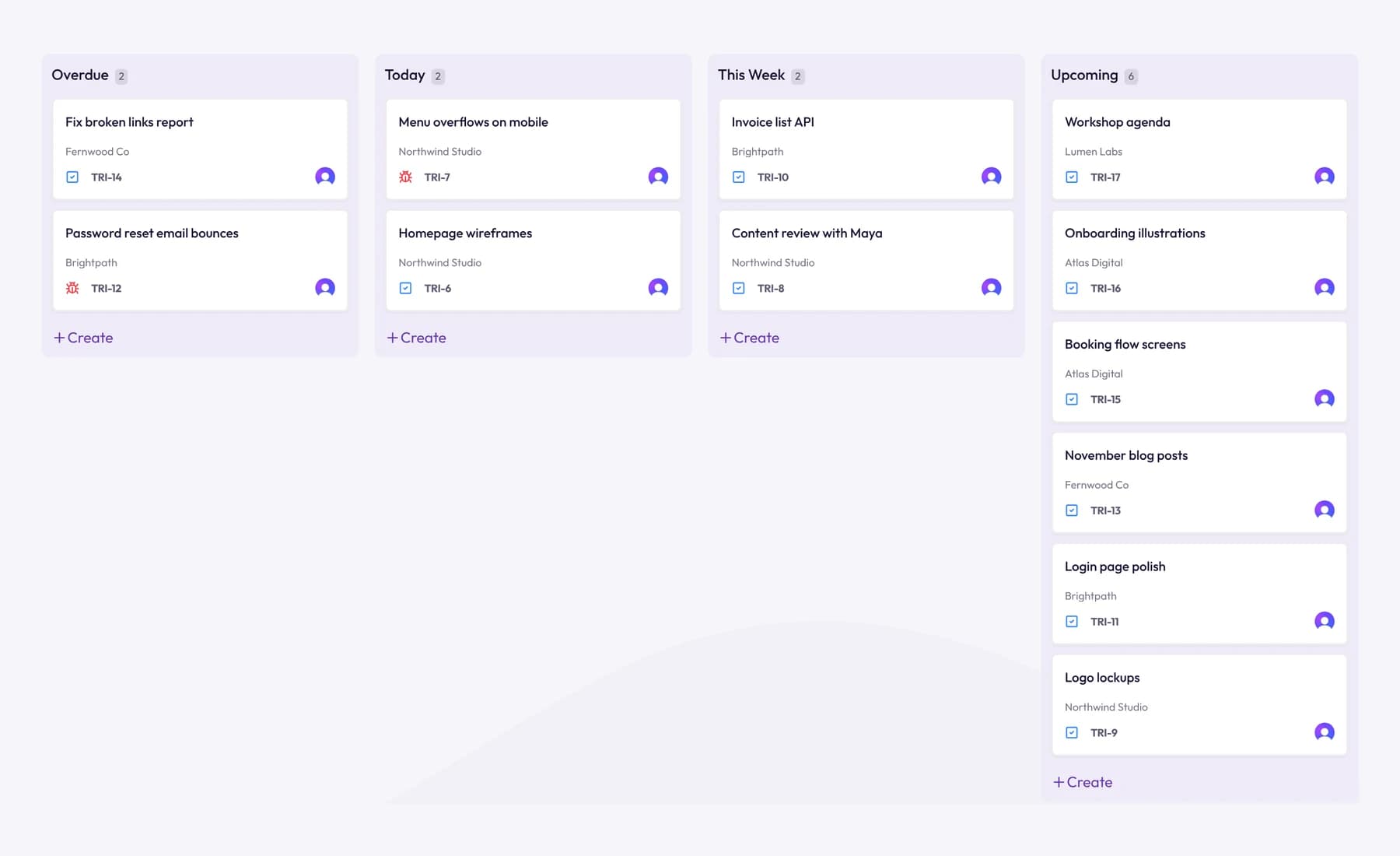
Consider a client-work tool if most of your hours end up on client invoices. Tristiks Grow, which we make, is built for that. Its kanban board sorts tasks by due date, gives tasks and bugs short keys like ALV-14 and tracks time on every card.
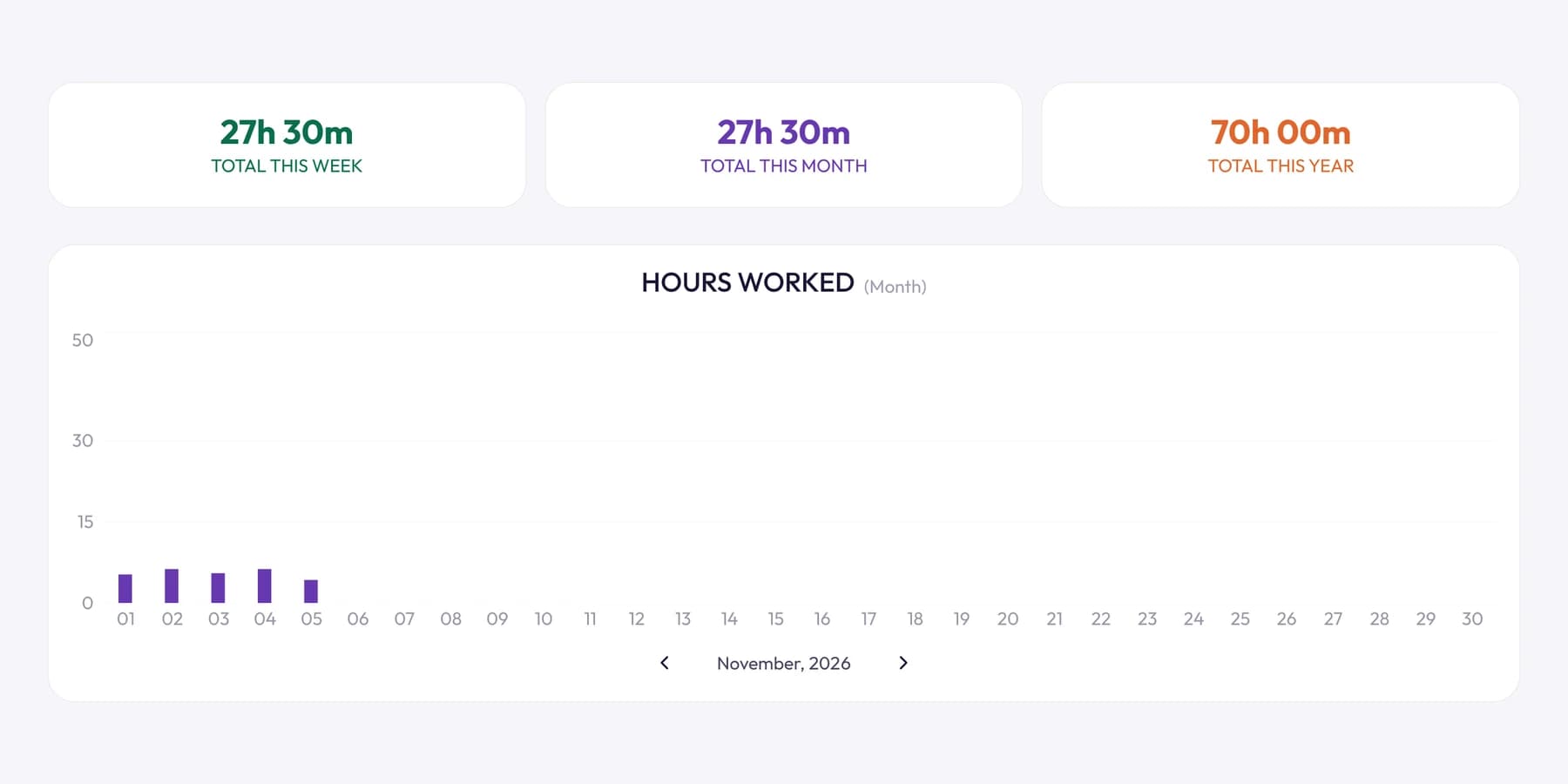
Time comes from OneTrack, the desktop app for macOS, Windows and Linux, or the web timer, with optional screenshots and activity levels. Project time tracking shows each project's tracked time beside its estimate, and the hours become invoices without copying. Tristiks Grow doesn't connect to Jira, so it suits teams that run client work in it, not alongside it.
Plenty of agencies use both: Jira for a client's in-house product team, and a client-work tool for their own hours and invoices. For a side-by-side look, see Tristiks Grow vs Jira.
If you're still choosing a way of working, our guide to Kanban vs Scrum for client projects explains why many agencies prefer a continuous board to sprints.
Frequently asked questions
Does Jira have built-in time tracking?
Yes. Jira Cloud has time tracking turned on by default. You can set an original estimate on a work item, log time against it, and see time spent and the remaining estimate in the Time tracking field and in reports.
How do I log time in Jira?
Open the work item, select More actions, then Log work, or select the Time tracking field. Enter the time spent (for example, 2h 30m) and the time remaining if it has changed, then select Save. You need the Work on work items permission in that space.
Can Jira track billable hours?
Not natively. Atlassian's documentation for built-in time tracking doesn't cover billing rates, billable vs non-billable time or invoices. Teams that need billable hours usually add a Marketplace app such as Tempo, or track client time in a tool built for invoicing.
Why is my Jira remaining estimate wrong?
Usually because time was logged, edited or deleted after the estimate changed. Atlassian notes that editing or deleting a work log uses the earlier values to calculate the time remaining, so you may need to set the remaining estimate by hand. Also check that your working hours per day match your team's real day.
Can Jira create timesheets?
Atlassian's docs for native time tracking describe work logs on each work item and reports, not a weekly timesheet per person. Timesheet apps such as Tempo and Clockwork add that view.
Wrap up
Jira's time tracking is good at what it was built for: estimating work and seeing whether a release is on track. It stops short of billing, so agencies either extend it with an app or track client time somewhere that turns hours into invoices.
If that's you, see how Tristiks Grow compares with Jira for client work.
Category: Time Tracking
Suraj Rao
Suraj Rao is the founder of Tristiks, the team behind Tristiks Grow and its desktop time tracker OneTrack. He writes about time tracking, client work and getting paid, and about DevOps, cloud and AI from years of building software.