Time Blocking: How to Plan Your Day (with Examples)
 By Suraj Rao8 min read
What You'll Learn
- Time blocking means giving every part of your day a job in advance, so client work, meetings and admin each get a set slot on your calendar.
- Block the week in order: fixed commitments first, then deep client work in your best hours, then admin, email and a daily buffer.
- Comparing your blocks with the time you actually tracked each week shows where your estimates are off, so next week's plan is more realistic.
Time blocking is a way of planning your day by dividing it into blocks of time, each reserved for one task or type of work. Instead of working from a to-do list, you decide in advance when each piece of work happens, and put it on your calendar like a meeting.
For freelancers and agencies juggling several clients, time blocking turns "I'll get to it" into a specific slot on Tuesday morning.
This guide covers how time blocking works, how to block a week step by step, two example schedules, the difference between time blocking and time boxing, and how to check your plan against the time you actually tracked.
What time blocking is (and why it works for client work)
A to-do list tells you what to do. A time-blocked calendar also tells you when, and how long you've got. Every hour has a job, including breaks and admin.
It works well for client work for a few reasons:
- It makes capacity visible. If your week is already blocked, you can see that a new project can't start until next week.
- It protects focused work. Design, writing and development need long, uninterrupted stretches. Blocks keep meetings from breaking them up.
- It's fair to every client. Each client gets their slot, rather than the loudest one getting all your time.
How to time block your week, step by step
Block a week at a time, then adjust each day. Set aside 30 minutes on Friday afternoon or Monday morning.
1. List what the week needs
Write down everything that needs to happen this week, with a rough estimate for each:
- client deliverables and their due dates;
- meetings and calls already booked;
- admin (invoices, proposals, bookkeeping);
- email and messages;
- anything personal that's fixed, such as school pick-up.
Tasks with due dates this week go first.
2. Add your fixed commitments
Put meetings and personal commitments on the calendar first, since they can't move. Cluster calls together, for example on Tuesday and Thursday afternoons, so they don't break the day into pieces too short for real work.
3. Block deep work in your best hours
Most people have a few hours a day when they think most clearly, often the morning. Give those hours to your hardest client work, in blocks of 90 minutes to 3 hours.
Name each block after the client and task, not just "work":
09:00–11:30 Northwind Studio: homepage designA specific name means you start working the moment the block begins.
4. Add shallow work and admin
Email, invoicing and small fixes go in shorter blocks, ideally in the afternoon. Two or three 30-minute email blocks a day keep your inbox contained. Add one longer weekly admin block for invoices and follow-ups.
5. Leave buffers
Things take longer than planned, and clients send urgent requests. Leave 30 to 60 minutes unblocked each day. A plan with no slack breaks by Tuesday.
6. Review and adjust every day
At the end of each day, take five minutes to move anything that didn't get done and adjust tomorrow's blocks. The plan is a guide, not a contract.
Time blocking examples
Example 1: a freelancer with three clients
Alex is a freelance designer working with three clients: a website build (Client A), a monthly retainer (Client B) and a small brand project (Client C). Here's a typical Tuesday:
| Time | Block | Notes |
|---|---|---|
| 08:30–09:00 | Plan the day, email | Reply only to anything urgent |
| 09:00–11:30 | Client A: homepage design | Deep work, notifications off |
| 11:30–12:00 | Email and messages | |
| 12:00–13:00 | Lunch | |
| 13:00–14:30 | Client C: logo concepts | Deep work |
| 14:30–15:00 | Client B: retainer requests | Small fixes and updates |
| 15:00–15:30 | Call with Client C | Clustered after the work it reviews |
| 15:30–16:30 | Client B: monthly report | |
| 16:30–17:00 | Buffer, email, plan tomorrow |
And across the week, so each client gets steady attention:
| Day | Morning (deep work) | Afternoon |
|---|---|---|
| Monday | Client A | Client B, email |
| Tuesday | Client A | Client C, client calls |
| Wednesday | Client C | Client A, email |
| Thursday | Client A | Client B, client calls |
| Friday | Client B | Admin: invoices, proposals, next week's plan |
Calls cluster on two afternoons, and Friday afternoon is protected for admin.
Example 2: an agency team lead
Sam leads a team of five at a small agency, mixing their own client work with reviews and planning. Here's a typical Wednesday:
| Time | Block | Notes |
|---|---|---|
| 08:45–09:00 | Check the board | Overdue and due-today tasks |
| 09:00–09:15 | Team check-in | Blockers only |
| 09:15–11:15 | Own client work: campaign strategy | Deep work |
| 11:15–12:00 | Reviews | Approve work waiting in review |
| 12:00–13:00 | Lunch | |
| 13:00–14:00 | Client calls | Two 30-minute calls |
| 14:00–15:00 | Office hours | The team can drop in with questions |
| 15:00–16:00 | Planning: next week's tasks and estimates | |
| 16:00–16:30 | ||
| 16:30–17:30 | Buffer | Urgent requests, unplanned work |
Batching reviews and office hours means the team knows when they'll get answers, and Sam still gets two hours of uninterrupted work.
Time blocking vs time boxing
Time blocking reserves a slot on your calendar for a type of work. Time boxing sets a fixed time limit for a specific task, and you stop when the time is up, finished or not.
| Point | Time blocking | Time boxing |
|---|---|---|
| Main question | When will I work on this? | How long will I spend on this? |
| Scope | A type of work or a task | One specific task |
| When time runs out | Move to the next block, continue later | Stop, and judge what you've got |
| Best for | Planning the whole day or week | Tasks that could expand forever, such as research or revisions |
They work well together. A three-hour block for "Client A" might contain a 45-minute time box for "competitor research", so research doesn't eat the whole morning.
Timed focus methods are another way to work inside a block. Our guide to the Pomodoro Technique for billable work explains when 25-minute sessions help client work and when they get in the way.
Tools for time blocking
A calendar is enough.
- Your calendar. Google Calendar, Outlook or Apple Calendar all work. Color-code blocks by client or by type of work. Some work accounts on Google Calendar can also mark blocks as "focus time", which can decline meetings automatically (Google Calendar Help).
- Your task list. Your blocks come from your tasks. Keep tasks with due dates in one place, so you can see what each week needs.
- A timer. Start a timer when a block starts, to keep yourself honest. Our free online timer works in any browser tab, no account needed.
In Tristiks Grow, the business dashboard shows your tasks due next and a calendar with task due dates and invoice dates. Connect Google Calendar and your events, including your time blocks, appear beside them.
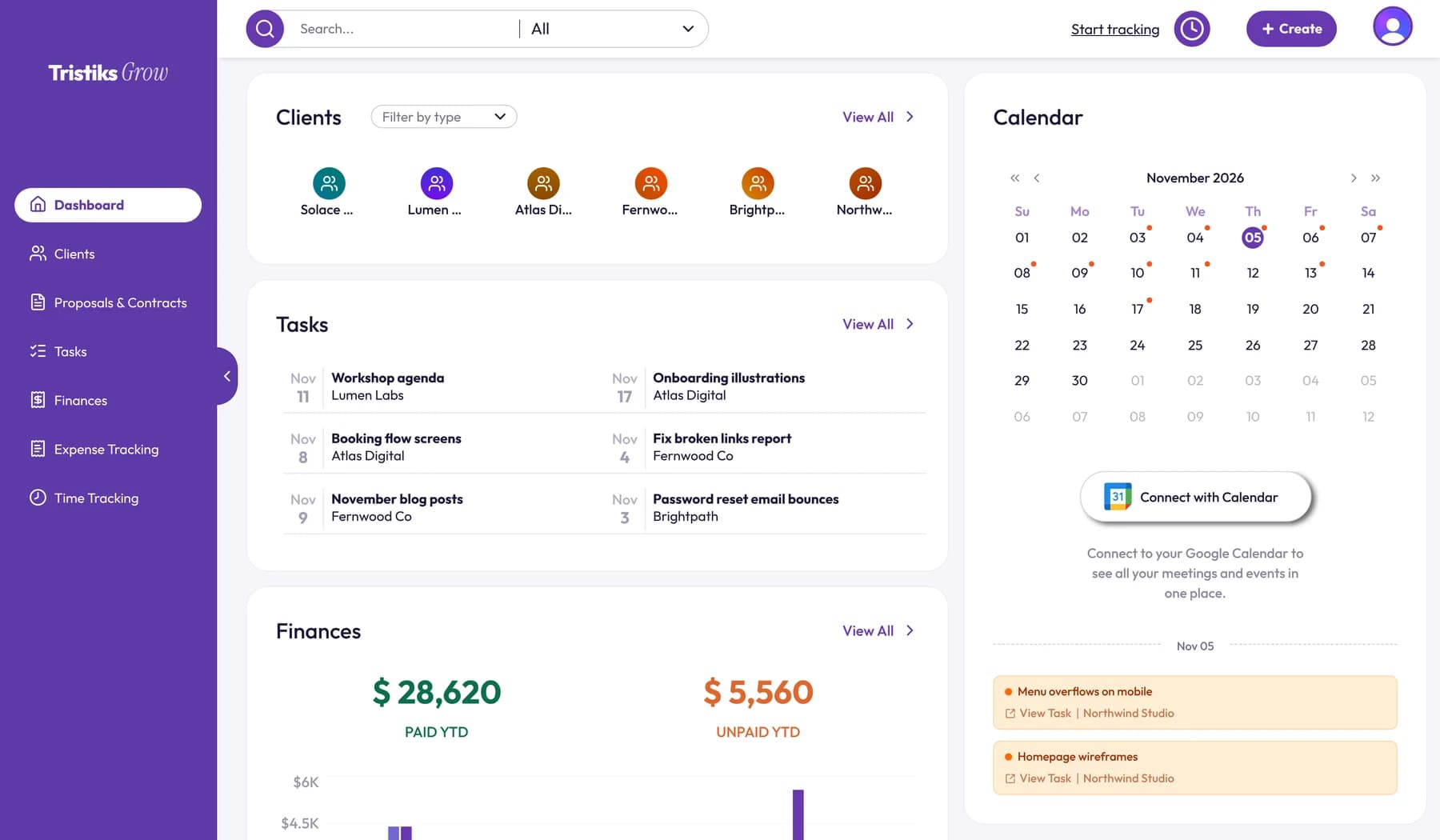
The Google Calendar integration is read-only: it shows your events and never changes them. So you create your blocks in Google Calendar, and plan them against your deadlines in one view.
Compare the plan with your tracked time
Time blocking gets much more useful when you check the plan against what actually happened.
Track time during your blocks
When a block starts, start a timer on the client, project and task. When you switch tasks, switch the timer. By the end of the week you have two records: what you planned and what you did. Our guide on how to track your time at work compares seven ways to do it.
Review the gap every week
At your weekly planning session, compare the two:
| Client / task | Planned | Tracked | Difference |
|---|---|---|---|
| Client A: homepage design | 10h | 13h 30m | +3h 30m |
| Client B: retainer | 8h | 6h 15m | −1h 45m |
| Client C: logo concepts | 5h | 5h 20m | +20m |
| Email and admin | 5h | 7h 40m | +2h 40m |
Look for patterns, not one-off misses:
- Consistently over on one kind of task? Your estimates for that work are too low. Plan longer blocks, and check whether your quotes are too low as well.
- Admin always over? Give it more time, or batch it better.
- One client always over? It may be scope creep, or a client who needs more time than they're paying for.
With Tristiks Grow, the timer records every minute against a client, project and task, so this review takes a few minutes rather than an afternoon of reconstructing the week.
Common time blocking mistakes
- Blocking every minute. One late call breaks the whole day.
- Blocks that are too short. Thirty minutes is rarely enough for design or code.
- Vague block names. "Work" doesn't tell you what to start.
- Never reviewing. Without comparing plan and reality, your estimates never improve.
- Giving up after one bad day. Move the blocks and carry on.
Frequently asked questions
What is an example of time blocking?
A freelancer might block 9:00 to 11:30 for one client's design work, 11:30 to 12:00 for email, 13:00 to 14:30 for a second client, and 16:30 to 17:00 as a buffer. Each block has one job, so there's no deciding what to do next.
Is time blocking the same as time boxing?
No. Time blocking reserves a slot on your calendar for a type of work. Time boxing limits how long you'll spend on one task, and you stop when time is up. Many people use both together.
Does time blocking work with clients who send urgent requests?
Yes, if you leave room for them. Keep a daily buffer block for urgent work, and when something bigger arrives, move a block rather than abandoning the plan. If urgent requests arrive every day, that's a sign to agree response times with your clients.
Wrap up
Time blocking gives every hour a job: deep client work in your best hours, admin and email in short blocks, and a buffer for the unexpected. Review the plan against your tracked time every week, and it gets more accurate each time.
To see your deadlines and Google Calendar events in one place while you plan, take a look at the Tristiks Grow business dashboard.
Category: Productivity
Suraj Rao
Suraj Rao is the founder of Tristiks, the team behind Tristiks Grow and its desktop time tracker OneTrack. He writes about time tracking, client work and getting paid, and about DevOps, cloud and AI from years of building software.