Tristiks

Windows time tracker with screenshots for client work

OneTrack is a lightweight desktop app for Windows that keeps your timer in the system tray, adds screenshots and activity levels, and sends every hour to your timesheets and invoices.

No credit card required
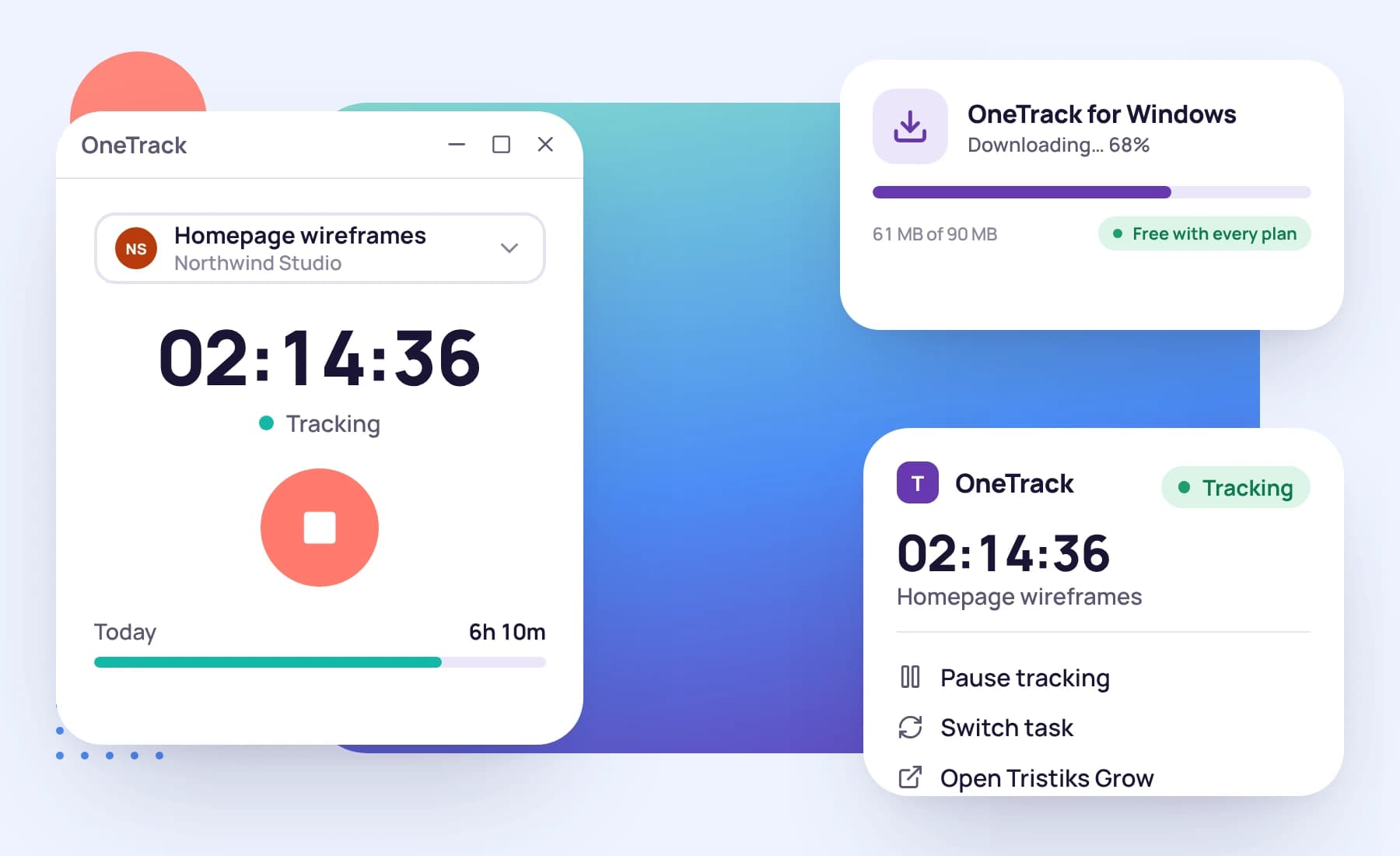
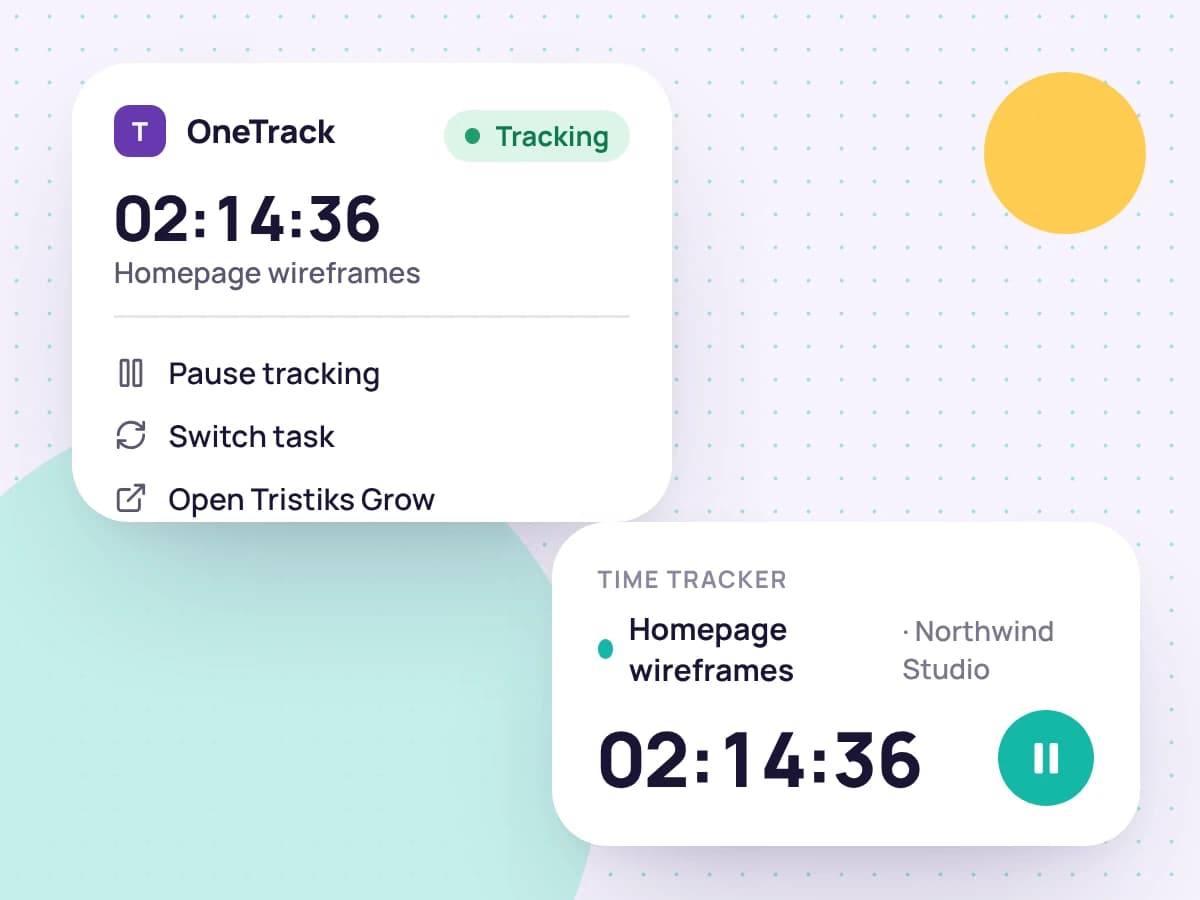
The OneTrack app for Windows with its tray menu and installer

Made for Windows

A 64-bit installer for Windows 10 or later. Show the app in the taskbar, the system tray, or both, and keep it on top in compact mode if you like.

Download for Windows

Time tracking with proof of work

Start the timer on a client, project and task. The app counts time in ten-minute slices, gives each an activity level, and takes screenshots at random moments in the capture window you choose.

It shares one clock with the web app, so a timer started in your browser shows here too, and a pause or stop reaches the other within seconds.

See exactly what's tracked
OneTrack
00:00:00

Website redesign · Homepage wireframes

No limitsToday: 3:20
  • Northwind Studio

  • Brightpath

Tasks

Website redesign

Updated just now
Try:

A working copy of the OneTrack desktop time tracker with sample clients: choose a project and task, start and stop the timer, answer the idle prompt after stepping away, and see time wait to upload while offline.

Out of the way while you work

The timer and its controls live in the system tray, so you can close the window and keep tracking. Set the app to launch when you log in, starting hidden.

Choose whether to be notified when a screenshot is taken or the timer starts or stops, and when to be asked about idle time.

The tracker's menu in the system tray while it runs in the background

Never loses an hour

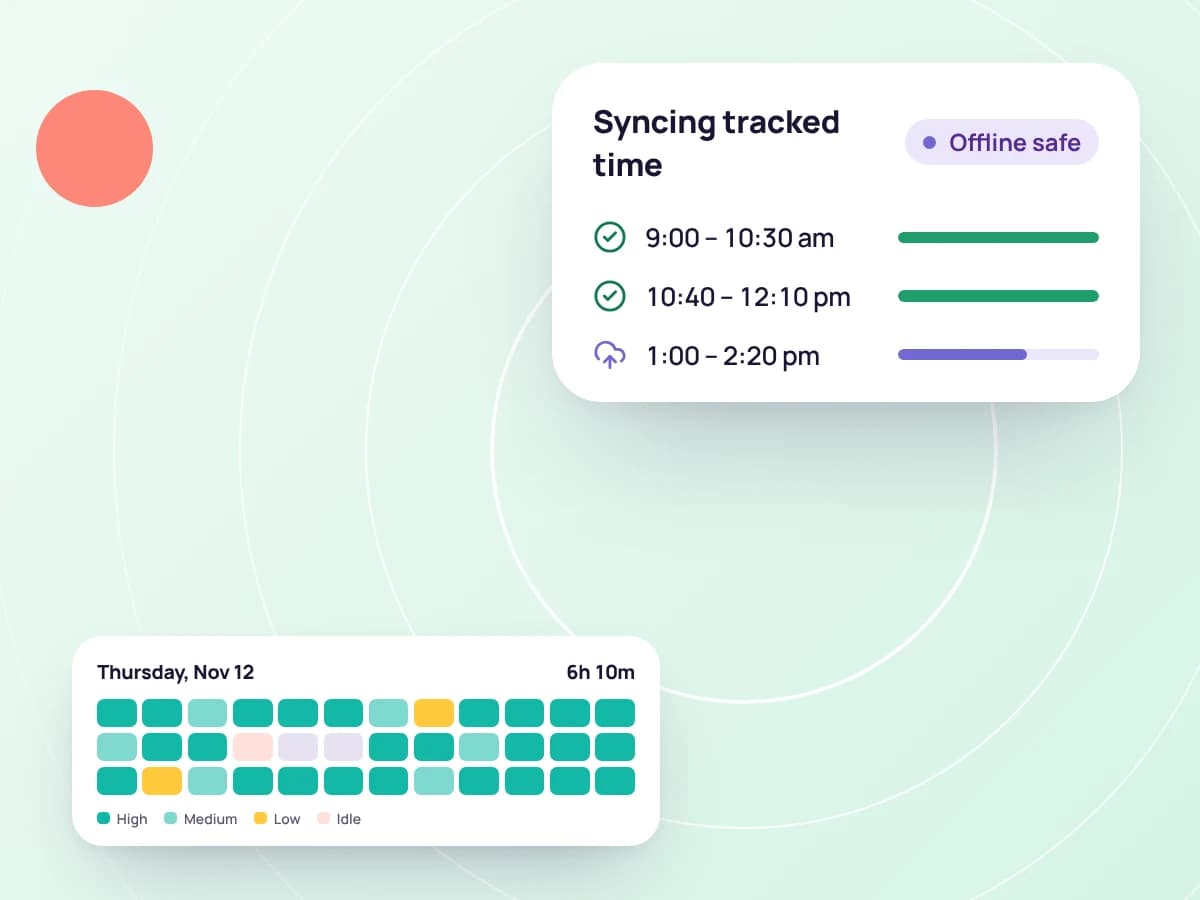
Each slice is saved the moment it ends. Offline, your time and screenshots wait on your computer and upload when you're back online; captures more than 72 hours old are dropped unsent.

Quit the app and it uploads what's left first, showing you what it's still sending.

Tracked time uploading after being saved offline

Connect once, stay connected

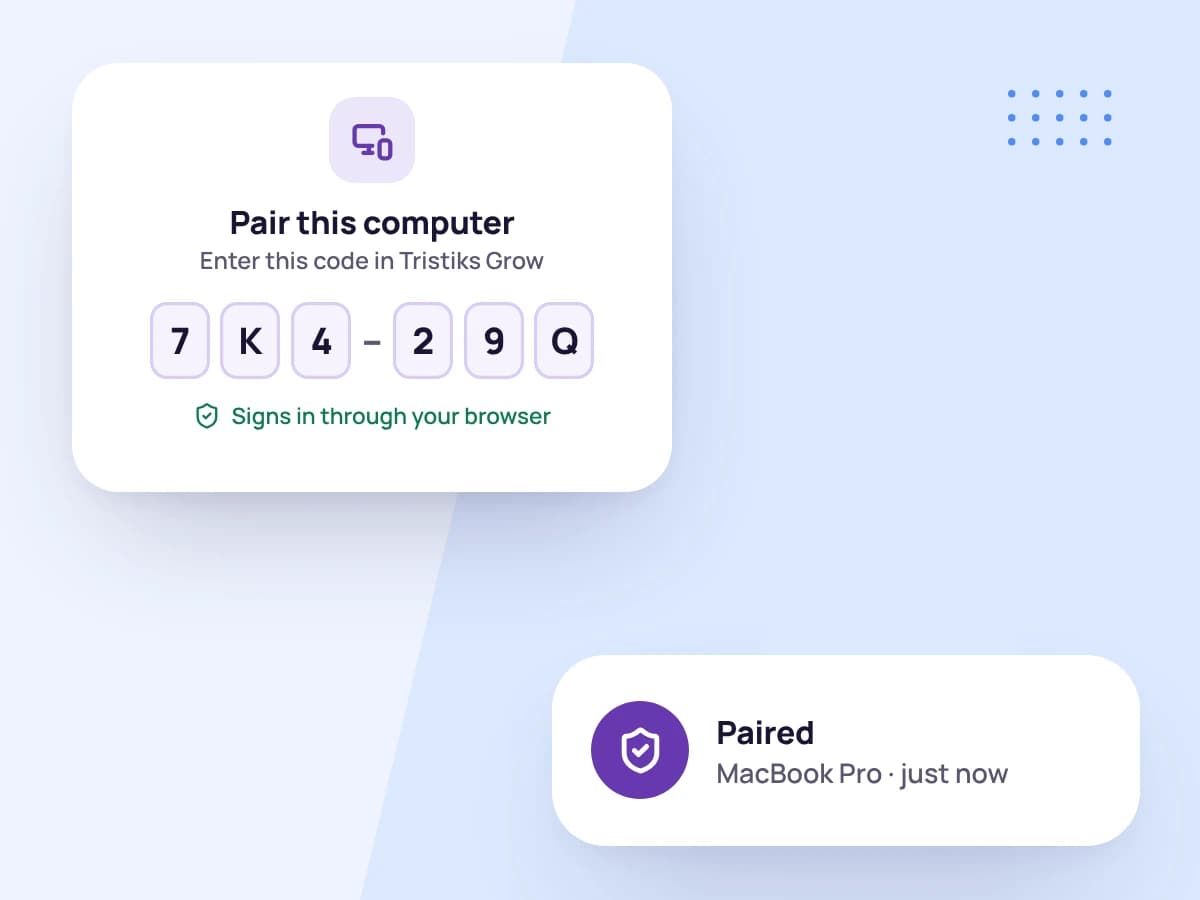
Click Sign in in OneTrack and finish in your browser, with the account you already use. The one-time link expires after ten minutes, and the app keeps its sign-in in your system's secure storage.

Sign out in OneTrack whenever you like, and the computer stops syncing to your account.

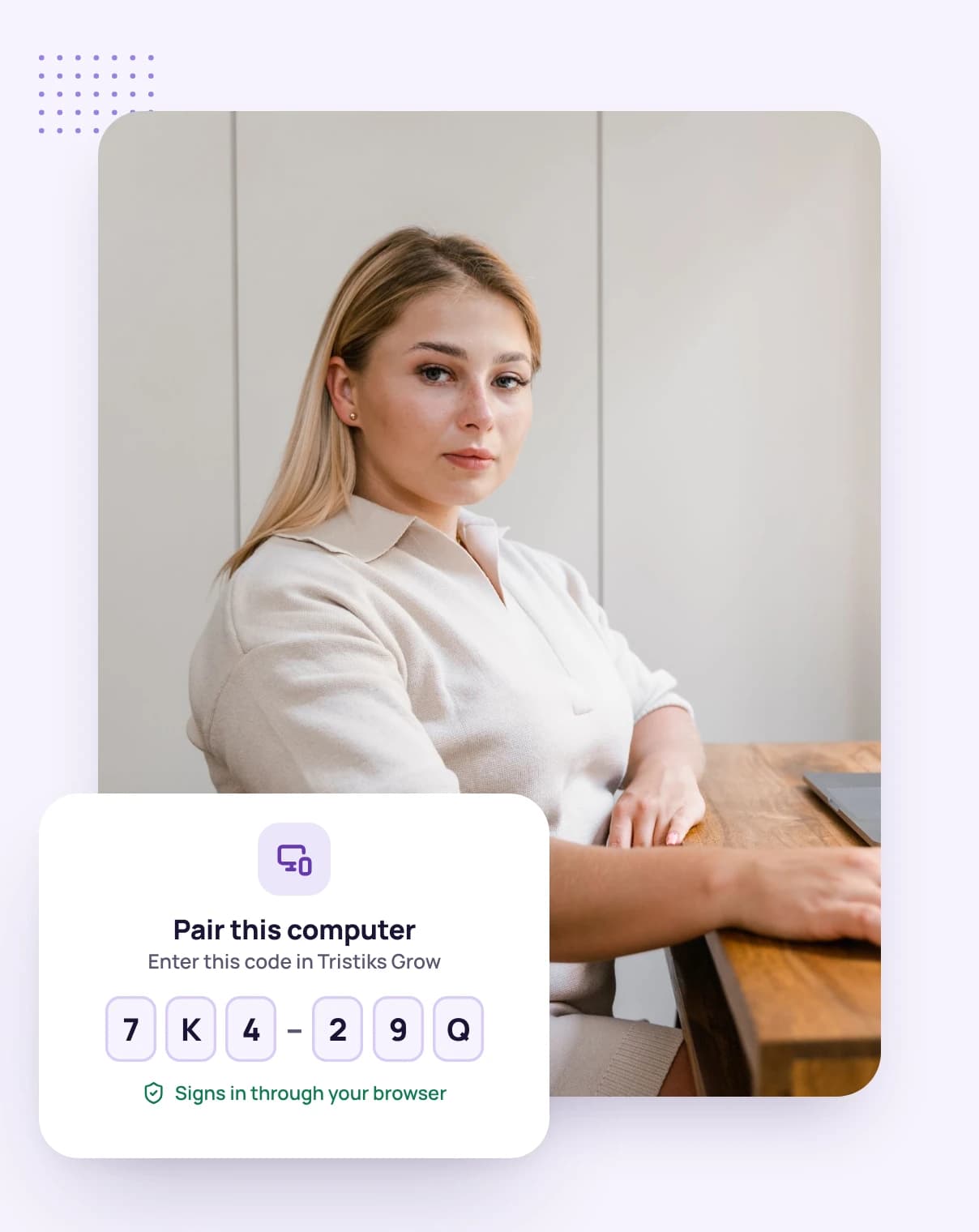
Pairing the desktop app with a code

Start tracking in three steps

  1. 1

    Download and install

    Download the setup .exe and run it.

  2. 2

    Sign in

    Click Sign in in OneTrack and confirm in your browser.

  3. 3

    Start the timer

    Pick a client, project and task, and get to work.

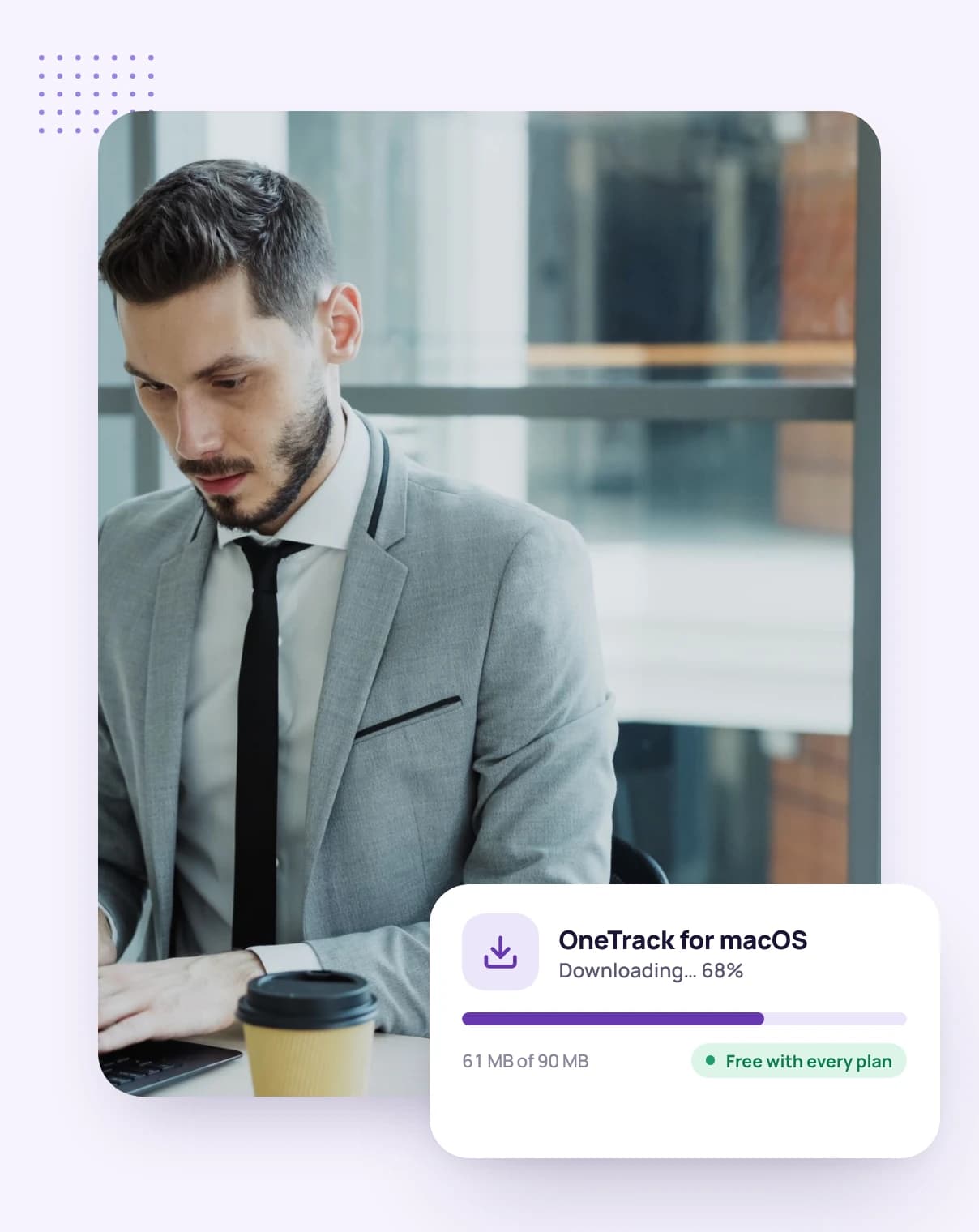
A man in a grey suit at his laptop, downloading the OneTrack installer

FAQ

Windows app questions, answered

Still have questions? Talk to our team.

Which versions of Windows does it support?

64-bit Windows 10 or later.

Can it run in the system tray only?

Yes. Show it in the taskbar, the system tray, or both, and keep tracking in the tray when you close the window.

Does the desktop app record what I type?

No. It reads when you last used the keyboard or mouse, never which keys you pressed.

Does it track when the timer is off?

No. Nothing is collected unless the timer is running: no time, no screenshots, no activity.

How does the app update?

It checks for new versions and can download and install them for you, either straight away or when you next quit. It only installs an update automatically if the download matches its published checksum.

Is there a free trial?

Yes. Every plan starts with a free 14-day trial, and you don't need a credit card to sign up.

Track time on Windows with OneTrack

Start a free 14-day trial and download the Windows app, or book a demo to see it in action.