How to Switch Time Tracking and Invoicing Software
 By Suraj Rao12 min read
What You'll Learn
- Export everything before you change plans: time entries, clients and rates, projects, invoices as both CSV and PDF, expenses with receipts, signed contracts and your recurring invoice schedules.
- Cut over at the start of a billing cycle, let open invoices get paid in the old tool, and carry your invoice numbering on from where it stopped.
- Run both tools for one cycle, then downgrade before you cancel, and keep an archive for as long as your tax authority requires, which can be six years or more.
To switch time tracking or invoicing software without losing data, export everything from the old tool before you touch your plan, pick a cutover date at the start of a billing cycle, finish collecting open invoices where they were sent, continue your invoice numbering in the new tool, run both for one cycle, and only then cancel, keeping an archive of what you exported.
Plenty of freelancers and small agencies are switching. Prices have risen across the category (we cover why freelance software keeps getting more expensive and Harvest's price increase, and how to compare per-seat vs flat pricing), and ownership has changed hands too: Zoom announced it was acquiring Bonsai in late 2025. Whatever the reason, the move is where things go wrong.
Below: why switches fail, ten steps, what each common tool lets you export, how long to keep records, and a copy-ready checklist. One disclosure: we make Tristiks Grow. Facts about other tools come from their own help centers at the time of writing (November 2026), and menus move, so check the current screens.
Why switching tools goes wrong
Switches rarely lose data in one dramatic moment. They leak it:
- Hours fall between two tools. Monday is tracked in the old app, Tuesday in the new one, and the invoice misses a day.
- Invoices go out twice, or a client pays an old invoice the new tool doesn't know about.
- Numbering restarts at 1, leaving two invoice 0001s for your accountant to ask about.
- Recurring invoices stop quietly because nobody set the retainer up again.
- Exports are partial: only the date range on screen, only your own entries, or only active clients.
- The account closes too early, taking signed contracts, receipts and invoice PDFs with it.
Step 1: Take an inventory of what you have
Before you export anything, open each section of the old tool and write down what's there:
- Clients, active and archived, with each one's rate and currency.
- Projects and tasks, with budgets or estimates.
- Time entries: the earliest date, and who tracked time.
- Invoices by status (paid, unpaid, draft, void) and any recurring schedules.
- Expenses and attached receipts.
- Proposals, contracts and other signed documents.
- Screenshots or activity data, if the tool captured them.
- Integrations such as accounting sync, payments and calendars.
This list is your export plan, and later your check that nothing was missed.
Step 2: Decide how much history you need
You don't have to move old time entries into the new tool, but you do have to keep the records. How long depends on where you file taxes. This is general information, not tax advice.
| Where you file | How long to keep business records | Official source |
|---|---|---|
| United States | Generally 3 years from filing, longer in some cases (up to 7 years for certain claims) | IRS: How long should I keep records? |
| United Kingdom (self-employed) | At least 5 years after the 31 January submission deadline for that tax year | GOV.UK: Business records if you're self-employed |
| India (GST registered) | 72 months from the due date of the annual return for that year, longer if there's an appeal or proceeding | CBIC: CGST Act, section 36 |
In practice: archive everything for the longest period that applies to you (check state or local rules and your accountant too), bring only active work into the new tool, and keep the history as files, not as a live account you keep paying for.
Step 3: Export everything, in more than one format
Export while your old plan is still active. Some exports depend on your plan, so downgrading first can lose them.
What to export
- Time entries from the most detailed report, with the widest date range, all people and all clients, as CSV. If you send time reports to clients, save those PDFs too.
- Clients and rates, including archived clients and contacts. Client exports don't always include rates, so note each client's rate, currency, tax rate and payment terms.
- Projects and tasks, with budgets and estimates.
- Invoices, paid and unpaid, as a CSV plus a PDF of every invoice. The PDF is what your client received; a CSV row isn't.
- Recurring invoice schedules. These rarely export, so write each one down: client, amount, line items, frequency, next send date, terms.
- Expenses, as CSV plus the receipt files.
- Contracts and signed proposals as PDFs, with any signature record.
- Screenshots and activity data only if you may need them to answer a client query; don't keep personal data longer than you need.
What each tool lets you export
From each tool's help center at the time of writing; menus change.
| Tool | Time entries | Clients | Invoices | Source and notes |
|---|---|---|---|---|
| Harvest | Time report to CSV or Excel; admins can export all time data from Settings > Import/Export | Manage > Clients, CSV or Excel | CSV or Excel, or PDFs as a ZIP | Harvest: not every plan has every export |
| Toggl Track | Detailed report as CSV, or workspace data export | Projects and clients export as JSON | Not listed | Toggl: formats can depend on plan |
| Clockify | Detailed report to CSV or Excel | Not covered in the articles we checked | Exportable on plans with invoicing | Clockify: CSV and Excel need a paid plan |
| Bonsai | CSV | CSV | CSV | Bonsai: one data type per file |
| HoneyBook | Not documented | Contacts as CSV, from Clients > Contacts | No bulk export found | HoneyBook: ask support about the rest |
| FreshBooks | Via reports, as CSV or PDF | Active and archived, as CSV | CSV; PDFs through bulk actions | FreshBooks |
Two more details. Toggl says regular members can only export their own entries (or those on projects they manage), so run exports as an admin, whatever the tool. And with HoneyBook, since we couldn't find an official bulk export for invoices or files, plan time to download signed contracts and invoice PDFs one by one.
Check the files before you move on
Open every export. Check the date range, that a sample month's totals match the old tool's screen, and that every person and archived client appears. Then store the files in two places, such as a cloud drive and an external drive.
Step 4: Choose a cutover date
Pick one day from which all new time is tracked, and all new invoices are sent, in the new tool. Make it the first day of a billing cycle, usually the first of the month. Then October's invoice comes from the old app and November's from the new one, and no month is split. If you bill weekly or by milestone, choose the day after you send an invoice.
Step 5: Decide what happens to open invoices
On cutover day some invoices will be sent but unpaid. You have two options.
Option A: collect them in the old tool (usually best). Leave them where they are, record payments there, and keep the old account until the last one is paid. The client sees nothing change. If clients pay by card through a link on the old invoice, this matters more: once you cancel, that link may stop working.
Option B: re-issue them from the new tool, only if you must close the old account quickly. Void or credit the old invoice so it can't be paid twice, issue a new one with a new number, and tell the client which replaces which. Our guide on how to correct a sent invoice covers voids and credit notes.
Either way, list every open invoice with its number, client, amount and due date, and tick each off as it's paid.
Step 6: Keep your invoice numbering continuous
Your new tool will want to start at invoice 1. Don't let it repeat numbers you've already used.
Tax rules care that numbers are unique and sequential. HMRC asks for a sequential number based on one or more series which uniquely identifies the document on a VAT invoice, and India's GST rules ask for a consecutive serial number, in one or more series, unique for the financial year. Two clean ways to handle it:
- Carry on the sequence. If your last invoice in the old tool was INV-0147, the first in the new tool is INV-0148.
- Start a new series with a different prefix, such as 2027-001, and note in your records when and why the series changed.
Never have two invoices with the same number. If you're GST or VAT registered, confirm the approach with your accountant. Our guide on how to write an invoice covers numbering and the other fields every invoice needs.
Step 7: Set up clients, rates and recurring invoices
Now build the new account:
- Business details: name, address, tax IDs, logo and payment details.
- Clients, with each one's hourly rate, currency, tax rate and payment terms. Check rates against your inventory; a wrong rate underbills every hour.
- Projects and tasks for active work only, with estimates.
- Recurring invoices from your list, with the next send date after cutover so nobody is billed twice for a month.
- Templates for proposals, contracts and invoice emails.
Don't import years of old time entries just to have them. They're in your archive, and in a new tool they can look unbilled.
Step 8: Run both tools for one cycle
Keep the old tool open for your first billing cycle on the new one. New time goes into the new tool only; the old one collects open invoices, answers questions about past work and gives you something to compare against.
At the end of the cycle, check:
- Hours per client against a typical month in the old tool. A big drop usually means someone isn't tracking in the new one.
- That the first invoices use the right rates, taxes, currency and numbering.
- That recurring invoices went out on the right day, once.
Step 9: Move the team
If others track time for you, they need more than an invitation email:
- The cutover date, and that the old tool is read-only from then on.
- The new client, project and task names, if they've changed.
- Who can change business settings, rates and invoices.
- If the new tool captures screenshots or activity levels and the old one didn't, a written explanation of what's captured and who sees it, before they start. See time tracking adoption.
Check everyone's first week in the new tool before the first invoice goes out.
Step 10: Downgrade, cancel and archive
Once the last open invoice is paid and your first cycle checks out:
- Export again to catch payments and edits since Step 3.
- Downgrade before you cancel if a free or cheaper plan keeps your data readable. Harvest, Toggl and Clockify list free plans, with limits.
- Check when your data is deleted after cancellation, in the vendor's help center or terms.
- Disconnect integrations such as accounting sync, payments, calendar and email.
- Cancel, and save the cancellation confirmation and your final bill.
Label the archive: one folder per tool, subfolders for time, clients, invoices, expenses and contracts, and a note with the date range. It's the same habit as the archiving step in our client offboarding checklist.
The switching checklist
Copy this into a spreadsheet or your task list.
| Step | What to do | Save as | Done |
|---|---|---|---|
| 1 | List clients, rates, projects, team, invoices, recurring schedules, integrations | Notes | [ ] |
| 2 | Confirm how long you must keep records where you file | Notes | [ ] |
| 3a | Export time entries (all dates, all people), clients, projects | CSV | [ ] |
| 3b | Export all invoices, paid and unpaid | CSV + PDF of each | [ ] |
| 3c | Write down every recurring invoice schedule | Spreadsheet | [ ] |
| 3d | Export expenses, receipts, signed contracts | CSV + PDFs | [ ] |
| 3e | Check totals and date ranges; store in two places | [ ] | |
| 4 | Pick a cutover date at the start of a billing cycle | Calendar | [ ] |
| 5 | List open invoices; collect in old tool or re-issue | Spreadsheet | [ ] |
| 6 | Set the new tool's invoice numbering | [ ] | |
| 7 | Set up business details, clients, rates, projects, recurring invoices | [ ] | |
| 8 | Run one cycle; compare hours and first invoices | [ ] | |
| 9 | Brief the team, invite them, check their first week | [ ] | |
| 10 | Re-export, downgrade, disconnect integrations, cancel, archive | Archive folder | [ ] |
How Tristiks Grow helps
If you're moving to Tristiks Grow, these features help with the steps above:
- Migration help on Advanced. The Advanced plan ($39 a month for up to 10 seats) includes account migration support, meaning help moving your data into Tristiks Grow.
- Clients with their rates. Each client profile saves the hourly rate, so invoices built from tracked hours use the right price.
- Signed agreements come with you. You can import existing signed agreements as files and keep them with the client.
- Invoice numbering is a setting, so you can line your numbers up with your old sequence.
- Recurring invoices for retainers, so the schedules you wrote down keep going.
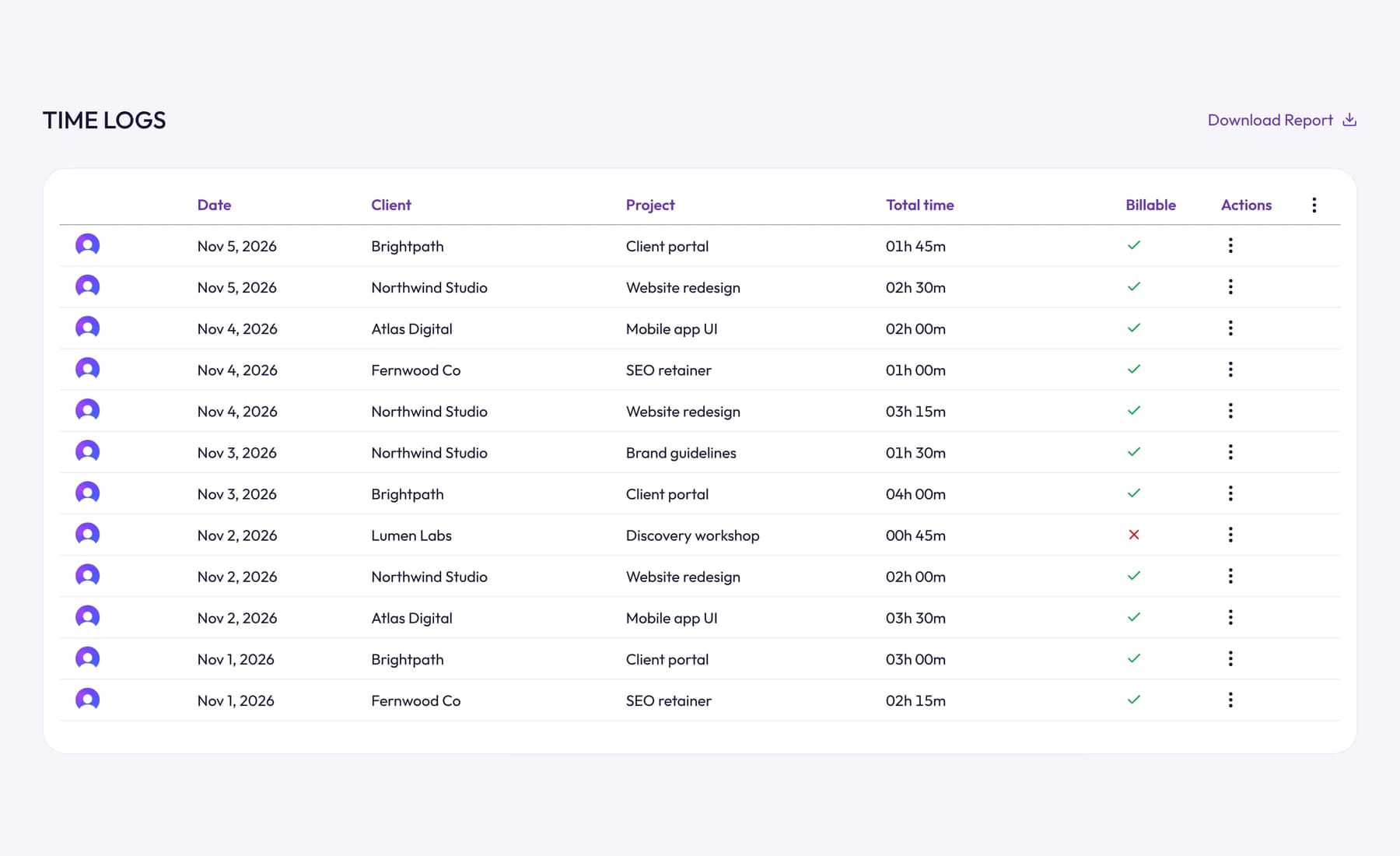
- You're never locked in. Export the time log, expenses and invoices as CSV at any time, and time reports as PDF. The time log CSV includes teammate, date, client, project, task, description, length, billable status and invoice number.
Every plan has a 14-day free trial with no card needed, so you can set up your clients and check a first invoice before you commit.
Frequently asked questions
Can I import my Harvest or Toggl history into another tool?
Some tools have CSV importers, such as Harvest's and Clockify's, but each expects its own columns, and Harvest warns that re-importing time entries creates duplicates. For most freelancers it's simpler to archive history as files and bring only active work across.
Should I cancel my old tool straight away?
No. Export first, collect open invoices, run one billing cycle in the new tool, export again, then cancel. Downgrade to a free plan in between if one is available.
Wrap up
Switching tools is mostly a records job. Export everything as CSV and PDF, cut over at the start of a billing cycle, let open invoices finish where they started, keep numbering unbroken, and keep an archive for as long as the law asks.
If you're moving your timesheets, see how the Tristiks Grow timesheet software works, and try it free for 14 days.
Category: Time Tracking
Suraj Rao
Suraj Rao is the founder of Tristiks, the team behind Tristiks Grow and its desktop time tracker OneTrack. He writes about time tracking, client work and getting paid, and about DevOps, cloud and AI from years of building software.